Introduction to Data Synchronisation Studio
Data Synchronisation Studio (Data Sync) is an application designed to connect and synchronise data between systems.
Data Sync takes a unique approach to handling Import, Export, and Synchronisation tasks. Instead of relying on events or messages in queues, which can be complicated, distributed, and error-prone, Data Sync uses Set based Reconciliation with instant Data preview and no state. This ensures consistent and high-performance synchronisation through set-based data sets.
To learn more about using Data Sync and getting started, please visit our Data Sync Getting Started Pages.
System Requirements
- .NET Framework v4.8
- Windows Server 2016 - 2025
- Windows 10/11
- 2 GB RAM
- 1 CPU Core
- 50 GB Disk Space
Suggest 4GB+ RAM and 4+ CPU Cores for better performance.
Ouvvi requires SQL Server 2016 or higher (Express, Standard, or Enterprise) Database and IIS 10+.
Installation
Installation is performed via a Windows installer package. To download the latest version, please visit our download page.
Licensing
You can try Data Sync for free without a license by just downloading it. This gives you access to the full functions of the designer with the following limitations:
- Sync a maximum of 5000 rows of data
- Sync a maximum of 30 columns
- No scheduling or running unattended
This allows you to build out POCs and test use-cases before committing to a license, all without a time limit.
If you have any questions when testing send us a message at support@simego.com and we will be happy to help.
Once you are ready to purchase, an explanation of the different license types currently available can be found on our license types page.
License Key Activation
Data Synchronisation Studio (Data Sync) is activated with your license key via your internet connection against https://www.simego.com. The activation is automatically refreshed every 15 days to maintain the activation.
When you first open Data Sync, you will need to open the help menu and select Register License.
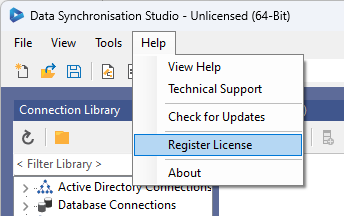
Enter in your license key and click OK.

If you do not have an internet connection and need to activate your key, please see our page on Offline License Key Activation.
Moving the License
If you need to change the machine that has your license activated, log in to your account at simego.com. Locate the license and corresponding machine (Client ID) and delete the activation.
Please note that you cannot remove offline license files, only online activations.
Remember to uninstall Data Sync from your old machine so that it does not attempt to re-activate.