Building a Custom Connector
Data Sync supports custom connectors built with .NET Framework and C#, giving you full control to integrate with any data source that isn't covered by the built-in connectors. The SharePoint and Dynamics connectors are examples of this approach — complex integrations that go beyond what a simple markup description can achieve.
By building on the Data Sync SDK you get access to all of Data Sync's features including calculated columns, lookups, schema mapping, the connection library, and project automation. You also get a full debugging experience — run with F5 and step through your code in Visual Studio just as you would any other project.
What You Need
- A copy of Data Synchronisation Studio
- Visual Studio 2022 or Rider (.NET Framework development environment)
- If you plan to make HTTP requests, the
Newtonsoft.JsonNuGet package (version 13.0.3)
Creating Your Project
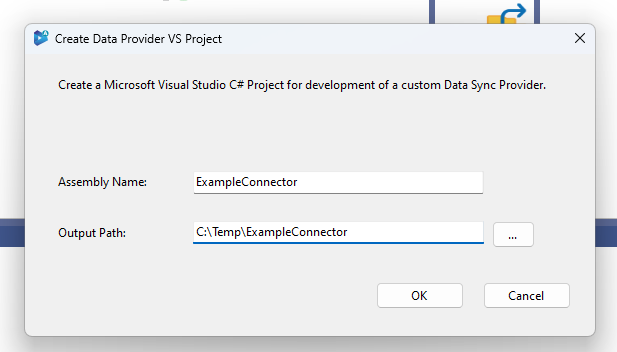
Data Sync can generate a starter Visual Studio project for you. Go to Tools > Create Data Provider VS Project, enter an assembly name and output path, and click OK. This creates a project preconfigured for connector development.
Setting Up Debugging
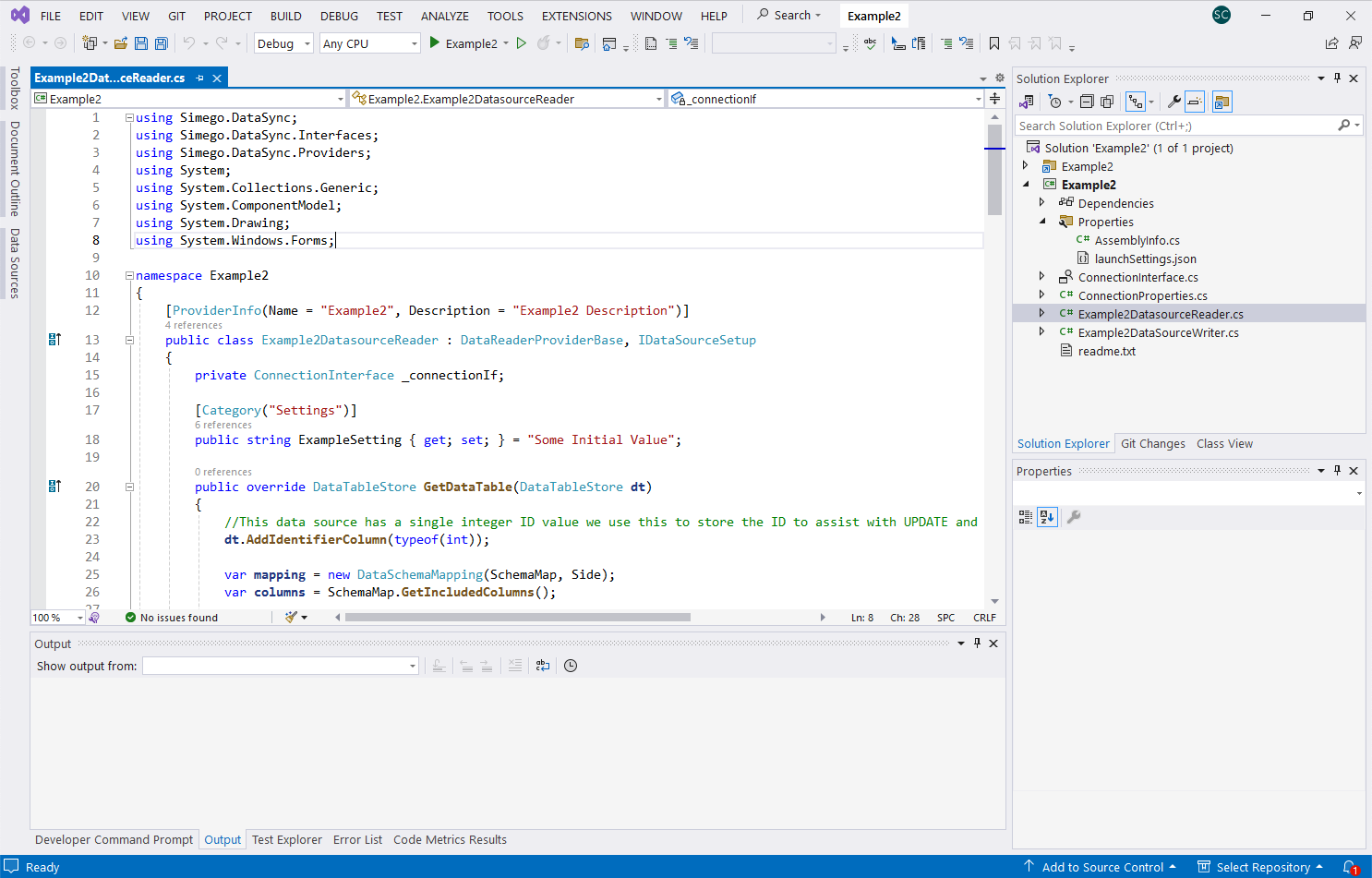
To debug your connector with F5, configure the project to launch an external program — the Data Sync Designer executable from your install directory: C:\Program Files\Simego\Data Synchronisation Studio 6.0\Simego.DataSync.Studio.exe
Pass -debug as a command line parameter. When you run the project, Data Sync will start and automatically load connectors from the Visual Studio output directory, so you can step through your code with breakpoints.
During development, make sure your connector is not installed in the Data Sync connector library at the same time as you're developing it — having it in both places will cause conflicts.
How Connectors Work
Connectors are loaded at runtime using .NET reflection. Data Sync uses the interfaces IDataSourceReader and IDataSourceWriter to call methods on your connector. The base classes DataReaderProviderBase and
DataWriterProviderBase handle most default behaviour, so in most cases you only need to implement a handful of methods.
For a basic read-only connector inheriting from DataReaderProviderBase you need to implement four methods:
- GetDefaultDataSchema — return the columns and data types for your data source
- GetDataTable — return the data as a DataTableStore based on the configured schema map
- GetInitializationParameters — return the configuration to save in the project file
- Initialize — load the saved configuration from the project file
Building a basic connector
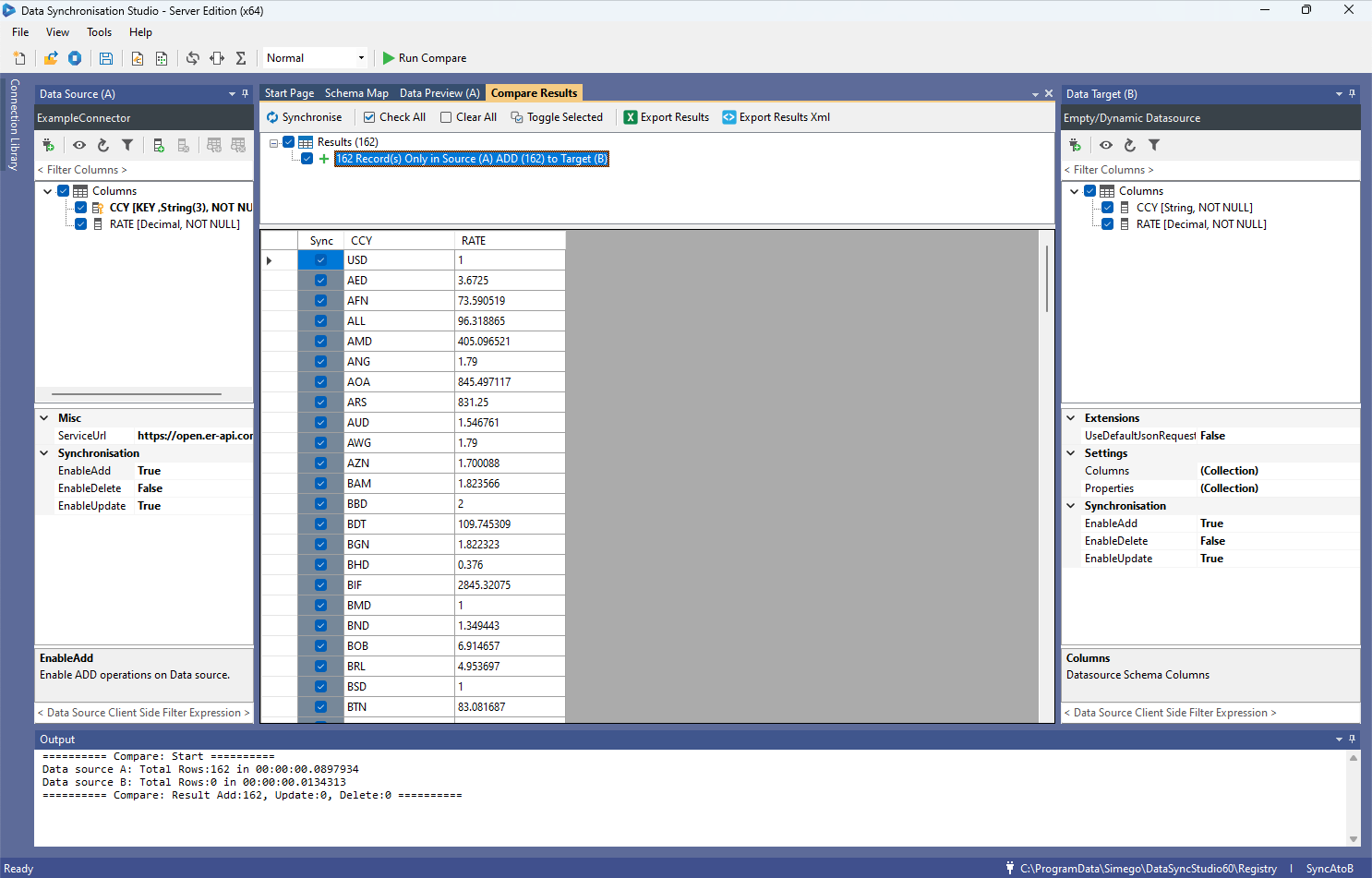
The example below creates a connector that fetches currency exchange rates from a public API and returns them as a table with CCY and RATE columns.
Configuration Properties
Public properties on your class are shown in the Data Sync property grid. Define them as you would any C# property:
public string ServiceUrl { get; set; } = "https://open.er-api.com/v6/latest/USD";
Save and load configuration
public override void Initialize(List<ProviderParameter> parameters)
{
    foreach (ProviderParameter p in parameters)
    {
        if (p.Name == nameof(ServiceUrl))
        {
            ServiceUrl = p.Value;
        }
    }
}

public override List<ProviderParameter> GetInitializationParameters()
{
    return new List<ProviderParameter>
    {
        new ProviderParameter(nameof(ServiceUrl), ServiceUrl)
    };
}
Define The Schema
public override DataSchema GetDefaultDataSchema()
{
    DataSchema schema = new DataSchema();
    schema.Map.Add(new DataSchemaItem("CCY", typeof(string), true, false, false, 3));
    schema.Map.Add(new DataSchemaItem("RATE", typeof(decimal), false, false, false, -1));
    return schema;
}
Return The Data
DataSchemaMapping handles column mapping between source and target sides. The callback on dt.Rows.Add receives the column name and returns the value for that column:
public override DataTableStore GetDataTable(DataTableStore dt)
{
    var helper = new HttpWebRequestHelper();
    var response = helper.GetRequestAsJson(ServiceUrl);

    var mapping = new DataSchemaMapping(SchemaMap, Side);
    var columns = SchemaMap.GetIncludedColumns();

    foreach (JProperty item_row in response["rates"])
    {
        dt.Rows.Add(mapping, columns,
            (item, columnName) =>
            {
                if (columnName == "CCY") return item_row.Name;
                if (columnName == "RATE") return item_row.ToObject<decimal>();
                return null;
            });
    }

    return dt;
}
Complete Connector Class
using Newtonsoft.Json.Linq;
using Simego.DataSync;
using Simego.DataSync.Providers;
using System.Collections.Generic;

namespace ExampleConnector
{
    [ProviderInfo(Name = "ExampleConnector", Description = "ExampleConnector Description")]
    public class ExampleConnectorDatasourceReader : DataReaderProviderBase
    {
        public string ServiceUrl { get; set; } = "https://open.er-api.com/v6/latest/USD";

        public override DataTableStore GetDataTable(DataTableStore dt)
        {
            var helper = new HttpWebRequestHelper();
            var response = helper.GetRequestAsJson(ServiceUrl);

            var mapping = new DataSchemaMapping(SchemaMap, Side);
            var columns = SchemaMap.GetIncludedColumns();

            foreach (JProperty item_row in response["rates"])
            {
                dt.Rows.Add(mapping, columns,
                    (item, columnName) =>
                    {
                        if (columnName == "CCY") return item_row.Name;
                        if (columnName == "RATE") return item_row.ToObject<decimal>();
                        return null;
                    });
            }

            return dt;
        }

        public override DataSchema GetDefaultDataSchema()
        {
            DataSchema schema = new DataSchema();
            schema.Map.Add(new DataSchemaItem("CCY", typeof(string), true, false, false, 3));
            schema.Map.Add(new DataSchemaItem("RATE", typeof(decimal), false, false, false, -1));
            return schema;
        }

        public override List<ProviderParameter> GetInitializationParameters()
        {
            return new List<ProviderParameter>
            {
                new ProviderParameter(nameof(ServiceUrl), ServiceUrl)
            };
        }

        public override void Initialize(List<ProviderParameter> parameters)
        {
            foreach (ProviderParameter p in parameters)
            {
                if (p.Name == nameof(ServiceUrl))
                {
                    ServiceUrl = p.Value;
                }
            }
        }
    }
}
Once built and loaded into Data Sync, your connector appears in the connector list and can be used like any other:
Identifier Columns
Identifier columns are an internal mechanism that lets Data Sync maintain a row's primary key even when it isn't part of the schema map. This makes it straightforward to handle UPDATE and DELETE operations on the target by the correct key value.
If your connector is read-only, identifier columns are not needed.
Call dt.AddIdentifierColumn once before adding rows, then use AddWithIdentifier instead of Add:
public override DataTableStore GetDataTable(DataTableStore dt)
{
    dt.AddIdentifierColumn(typeof(int));

    var mapping = new DataSchemaMapping(SchemaMap, Side);
    var columns = SchemaMap.GetIncludedColumns();
    var result = TestData();

    foreach (var item_row in result)
    {
        dt.Rows.AddWithIdentifier(mapping, columns,
            (item, columnName) => item_row[columnName],
            item_row["item_id"]);
    }

    return dt;
}
In your writer class, retrieve the identifier for UPDATE and DELETE operations using itemInvariant.GetTargetIdentifier<T>().
Writing Back To Your Data Source
To support write operations, create a class that derives from DataWriterProviderBase and implement AddItems, UpdateItems, and DeleteItems. Return an instance from your reader's GetWriter method:
public override IDataSourceWriter GetWriter()
{
    return new ExampleConnectorDatasourceWriter { SchemaMap = SchemaMap };
}
The Execute method is called during the sync and passes the lists of items to add, update, and delete:
public override void Execute(List<DataCompareItem> addItems, List<DataCompareItem> updateItems,
    List<DataCompareItem> deleteItems, IDataSourceReader reader, IDataSynchronizationStatus status)
{
    if (addItems != null && status.ContinueProcessing) AddItems(addItems, status);
    if (updateItems != null && status.ContinueProcessing) UpdateItems(updateItems, status);
    if (deleteItems != null && status.ContinueProcessing) DeleteItems(deleteItems, status);
}
For AddItems, use AddItemToDictionary to get the target data as a dictionary and write it to your data source:
public override void AddItems(List<DataCompareItem> items, IDataSynchronizationStatus status)
{
    if (items != null && items.Count > 0)
    {
        int currentItem = 0;
        foreach (var item in items)
        {
            if (!status.ContinueProcessing) break;
            try
            {
                var itemInvariant = new DataCompareItemInvariant(item);
                Automation?.BeforeAddItem(this, itemInvariant, null);
                if (itemInvariant.Sync)
                {
                    Dictionary<string, object> targetItem = AddItemToDictionary(Mapping, itemInvariant);
                    // TODO: write targetItem to your data source
                    Automation?.AfterAddItem(this, itemInvariant, null);
                }
                ClearSyncStatus(item);
            }
            catch (SystemException e)
            {
                HandleError(status, e);
            }
            finally
            {
                status.Progress(items.Count, ++currentItem);
            }
        }
    }
}
For UpdateItems, retrieve the identifier to target the correct record. The dictionary only contains the changed columns:
public override void UpdateItems(List<DataCompareItem> items, IDataSynchronizationStatus status)
{
    if (items != null && items.Count > 0)
    {
        int currentItem = 0;
        foreach (var item in items)
        {
            if (!status.ContinueProcessing) break;
            try
            {
                var itemInvariant = new DataCompareItemInvariant(item);
                var item_id = itemInvariant.GetTargetIdentifier<int>();
                Automation?.BeforeUpdateItem(this, itemInvariant, item_id);
                if (itemInvariant.Sync)
                {
                    Dictionary<string, object> targetItem = UpdateItemToDictionary(Mapping, itemInvariant);
                    // TODO: update the record identified by item_id
                    Automation?.AfterUpdateItem(this, itemInvariant, item_id);
                }
                ClearSyncStatus(item);
            }
            catch (SystemException e)
            {
                HandleError(status, e);
            }
            finally
            {
                status.Progress(items.Count, ++currentItem);
            }
        }
    }
}
For DeleteItems:
public override void DeleteItems(List<DataCompareItem> items, IDataSynchronizationStatus status)
{
    if (items != null && items.Count > 0)
    {
        int currentItem = 0;
        foreach (var item in items)
        {
            if (!status.ContinueProcessing) break;
            try
            {
                var itemInvariant = new DataCompareItemInvariant(item);
                var item_id = itemInvariant.GetTargetIdentifier<int>();
                Automation?.BeforeDeleteItem(this, itemInvariant, item_id);
                if (itemInvariant.Sync)
                {
                    // TODO: delete the record identified by item_id
                    Automation?.AfterDeleteItem(this, itemInvariant, item_id);
                }
                ClearSyncStatus(item);
            }
            catch (SystemException e)
            {
                HandleError(status, e);
            }
            finally
            {
                status.Progress(items.Count, ++currentItem);
            }
        }
    }
}
Supporting The Connection Library
The connection library lets users store and reuse connection settings across projects — things like endpoints, usernames, and passwords — kept separate from the project file itself, either on disk or in the Ouvvi database.
To support it, implement IDataSourceRegistry:
- RegistryKey — the name of the connection library entry. This must be managed by your Initialize and GetInitializationParameters methods so it is saved with the project and restored on load.
- InitializeFromRegistry — load connector settings from the connection library.
- GetRegistryInitializationParameters — return the settings to store in the connection library.
- GetRegistryInterface — return a view of the connector that hides connection library parameters from the Data Sync property grid, since those are now managed via the library rather than the project file directly.
public void InitializeFromRegistry(IDataSourceRegistryProvider provider)
{
    var registry = provider.Get(RegistryKey);
    if (registry != null)
    {
        foreach (ProviderParameter p in registry.Parameters)
        {
            if (p.Name == nameof(ServiceUrl))
                ServiceUrl = p.Value;
        }
    }
}

public List<ProviderParameter> GetRegistryInitializationParameters()
{
    return new List<ProviderParameter>
    {
        new ProviderParameter(nameof(ServiceUrl), ServiceUrl)
    };
}
If you need to update the connection library at runtime, save a reference to the IDataSourceRegistryProvider so you can write back to the library later.
Use the helper base class DataReaderRegistryView<T> to create the registry view, exposing only the properties you want visible in the property grid when a library connection is active:
public class ExampleConnectorDatasourceReaderWithRegistry
    : DataReaderRegistryView<ExampleConnectorDatasourceReader>
{
    [ReadOnly(true)]
    public string ServiceUrl => _reader.ServiceUrl;

    public ExampleConnectorDatasourceReaderWithRegistry(ExampleConnectorDatasourceReader reader)
        : base(reader) { }
}

object GetRegistryInterface() => new ExampleConnectorDatasourceReaderWithRegistry(this);
Connection Library Server Explorer
If your connector can return multiple data sources — for example tables in a database or apps in a platform — you can also implement the connection library server explorer. This adds a tree view to the connection library window so users can browse and select available data sources directly rather than entering them manually.
Implement IDataSourceRegistryView:
- GetRegistryConnectionInfo — returns metadata about the connection such as its display name and icon.
- GetRegistryViewContainer — returns the folder and item list to display in the tree view. This is called each time the user expands a node, so items can be lazy loaded.
- GetRegistryViewConfigurationInterface — currently unused, return null.
The ParameterName on RegistryFolderType defines which property on your connector receives the selected item name. In the example below, selecting "Item 1" or "Item 2" from the tree would set the Table property:
public RegistryConnectionInfo GetRegistryConnectionInfo()
{
    return new RegistryConnectionInfo
    {
        GroupName = "Example Provider",
        ConnectionGroupImage = RegistryImageEnum.Folder,
        ConnectionImage = RegistryImageEnum.Folder
    };
}

public RegistryViewContainer GetRegistryViewContainer(string parent, string id, object state)
{
    var folder = new RegistryFolderType
    {
        DataType = InstanceHelper.GetTypeNameString(GetType()),
        Image = RegistryImageEnum.Table,
        Preview = true,
        ParameterName = nameof(Table)
    };

    folder.AddFolderItems(new string[] { "Item 1", "Item 2" });

    return new RegistryViewContainer(folder, null);
}

public object GetRegistryViewConfigurationInterface() => null;
You can add multiple folders and they support lazy loading — GetRegistryViewContainer is called again as the user expands each node, with parent and id identifying which node was expanded.
Supporting Lookups
To enable the LOOKUPA and LOOKUPB calculated column functions for your connector, implement IDataSourceLookup:
public DataTableStore GetLookupTable(DataLookupSource source, List<string> columns)
{
    var reader = new ExampleConnectorDatasourceReader
    {
        ServiceUrl = ServiceUrl
    };

    var defaultSchema = reader.GetDefaultDataSchema();
    reader.SchemaMap = new DataSchema();

    foreach (var dsi in defaultSchema.Map)
    {
        foreach (var column in columns)
        {
            if (dsi.ColumnName.Equals(column, StringComparison.OrdinalIgnoreCase))
                reader.SchemaMap.Map.Add(dsi.Copy());
        }
    }

    return reader.GetDataTable();
}
Custom Configuration UI
By default, Data Sync shows your connector's public properties in its standard property grid. If you need a more guided setup experience — for example to help the user authenticate or navigate available data sources — you can provide a custom UI component by implementing IDataSourceSetup:
public interface IDataSourceSetup
{
    void DisplayConfigurationUI(IntPtr parentHwnd);
    IDataSourceReader GetReader();
    bool Validate();
}
- DisplayConfigurationUI is called when the connection dialog opens. It receives a handle to the parent window where you can attach your control.
- Validate is called when the user clicks OK. Throw an exception to surface an error to the user, or return true to accept the configuration.
- GetReader is called after validation and should return an instance of your configured reader — typically just this.
The example below loads a ConnectionInterface form containing a PropertyGrid control and attaches it to the connection dialog:
public void DisplayConfigurationUI(IntPtr parent)
{
    var parentControl = Control.FromHandle(parent);

    if (_connectionIf == null)
    {
        _connectionIf = new ConnectionInterface();
        _connectionIf.PropertyGrid.SelectedObject = new ConnectionProperties(this);
    }

    _connectionIf.Font = parentControl.Font;
    _connectionIf.Size = new Size(parentControl.Width, parentControl.Height);
    _connectionIf.Location = new Point(0, 0);
    _connectionIf.Dock = DockStyle.Fill;

    parentControl.Controls.Add(_connectionIf);
}

public bool Validate() => true;

public IDataSourceReader GetReader() => this;
The ConnectionProperties class wraps your reader to expose only the properties you want to show in the property grid:
class ConnectionProperties
{
    private readonly ExampleDatasourceReader _reader;

    [Category("Settings")]
    public string ExampleSetting
    {
        get { return _reader.ExampleSetting; }
        set { _reader.ExampleSetting = value; }
    }

    public ConnectionProperties(ExampleDatasourceReader reader)
    {
        _reader = reader;
    }
}
Incremental Data Load
Incremental mode improves performance on large data sets by only fetching the rows relevant to the current comparison rather than loading everything. To support it, set SupportsIncrementalReconciliation = true in your constructor and implement the overload:
public override DataTableStore GetDataTable(DataTableStore dt, DataTableKeySet keyset)
In incremental mode, Data Sync passes a keyset containing the unique key values from the loaded source. Your implementation should return only the rows from the target that match those keys — each key is expected to be unique and return exactly one result.
This is particularly useful for connectors that sit on top of systems supporting filtered queries (SQL databases, REST APIs with filter parameters, etc.), where fetching only the relevant rows is significantly cheaper than loading the full data set.
Packaging and Distributing via GitHub
Once your connector is working, the recommended approach is to host it on GitHub. This lets users install it directly from within Data Sync with no manual file handling, and gives you a clean way to manage versions and push updates.
Building The Package
Compile your connector in Release mode and zip the output (typically just your .dll file) into a zip archive. Here's a batch script you can adapt:
set p=ExampleConnector
"C:\Program Files\Microsoft Visual Studio\2022\Enterprise\MSBuild\Current\Bin\msbuild.exe" ^
    /t:Build /p:Configuration=Release /p:NoWarn=1591
rmdir ..\dist\ /S /Q
mkdir ..\dist\files\%p%
xcopy ..\src\%p%\bin\Release\net48\*.* ..\dist\files\%p%\*.* /y
cd ..\dist\files\
del .\%p%\Simego.DataSync.Core.dll
tar.exe -acf ..\%p%.zip *.*
cd ..\..\src
Commit your repository to GitHub with the zip file included as a release asset.
Installing from GitHub
Users can install your connector directly from within Data Sync using the built-in connector installer. Go to File > Install Data Connector to open the installer window.
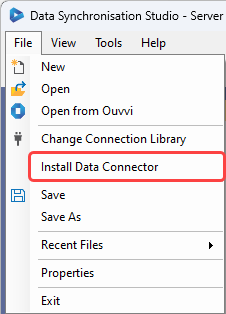
Select your connector from the dropdown and click OK. Data Sync will download and install it automatically. Once installed, close all instances of Data Sync and restart the application for the connector to appear.

If you receive an error stating it could not install the connector because it is "Unable to access folder", this is because the folder is locked by Ouvvi. Stop your Ouvvi services and try again.
Further reading
Our own open-source connectors are available on GitHub at github.com/simego-ltd and are a good reference for more complex implementations.