Connecting to Dynamics 365 via OAuth using the Client Credentials Flow with Certificate
You can create your own custom Azure Application to allow Data Sync to connect to your Dynamics 365 site using OAuth. The following documentation will explain the process you need to follow to create your own Azure app and use the client_credentials flow. If you want to use the authorization_code flow, please see our documentation here.
Create the Application
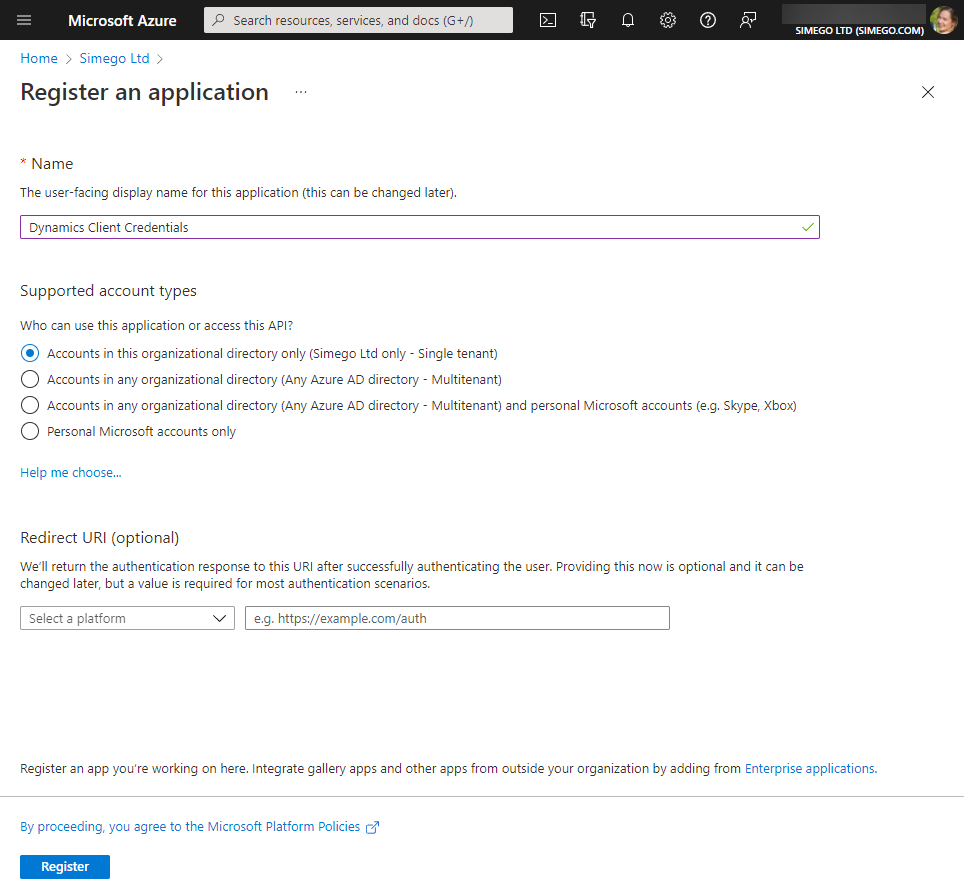
Login to your Azure Portal and navigate to Azure AD > App Registrations > New Registration to create your application.
Now enter in a name for your application and select the account type you need. In this example as we want to keep this private and only need access to those within our organization so we have selected Accounts in this organizational directory only.
Leave the redirect URI blank and then click onto Register to create the app.
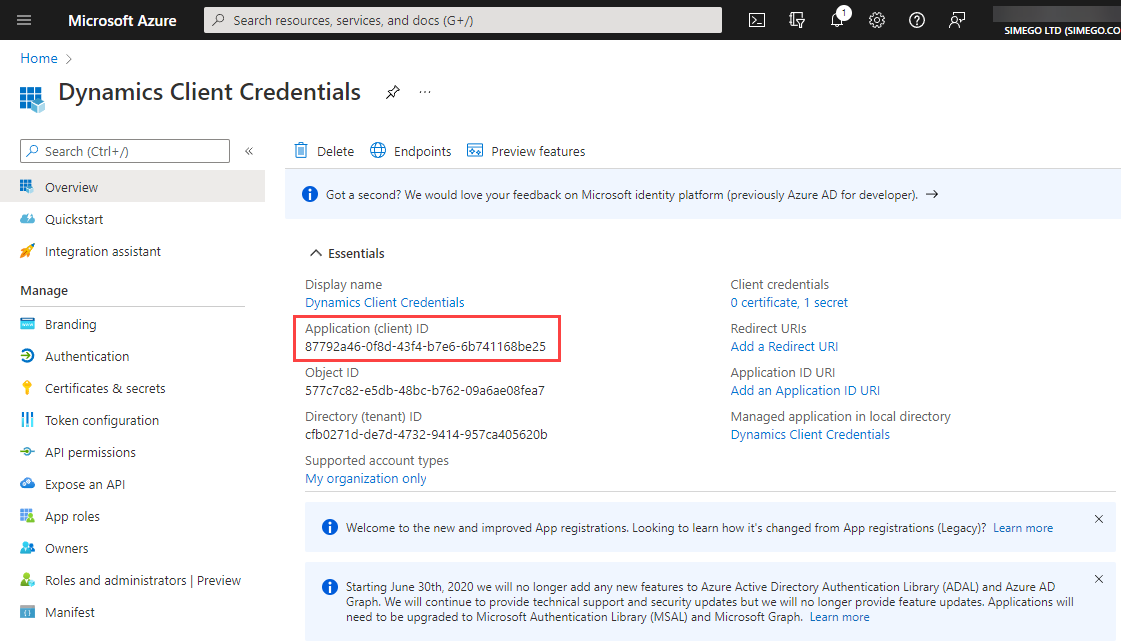
You'll now be given an overview of your app details, make sure to make a note of your Client ID, as you will need this to register the user in Dynamics and to connect in Data Sync.
Create a Certificate to use with Azure AD
You can use Powershell to create a new Self Signed Certificate for use with OAuth Authentication against Dynamics. The script below creates a 2 Year Certificate in LocalMachine Store and Exports Public Key File.
We are using the LocalMachine Certificate Store here so that the certificate is accessible to Ouvvi. You can adjust these settings to suit your requirements.
Run the script below from a temp directory with Elevated Admin Permission to create a new Certificate. The public key file will be written to the current directory.
$certname = “SimegoDataSync-Dynamics”
$cert = New-SelfSignedCertificate -Subject "CN=$certname" -CertStoreLocation "Cert:\LocalMachine\My" -KeyExportPolicy Exportable -KeySpec Signature -KeyLength 2048 -KeyAlgorithm RSA -HashAlgorithm SHA256 -NotAfter (Get-Date).AddYears(2)
Export-Certificate -Cert $cert -FilePath "$certname.cer"
Grant Public Key Permission
The Windows Accounts which need access to the Private Key in this certificate require that you grant permission to the Private Key in Windows Certificate Manager. The accounts which need access are those which are running Data Sync therefore your user account and the Ouvvi Service account.
Within Windows Local Machine/Computer Certificate Manager you can manage the Private Key here Certificate->All Tasks->Manage Private Keys...
Upload Certificate Azure AD App Registration
Upload the Certificate file created earlier to the Azure App registration under Certificates & Secrets ensuring that the Thumbprint value matches that of your certificate. Make a note of the Thumbprint value as you will need this for configuring the connection in Data Sync later on.
Get the Endpoint URLs
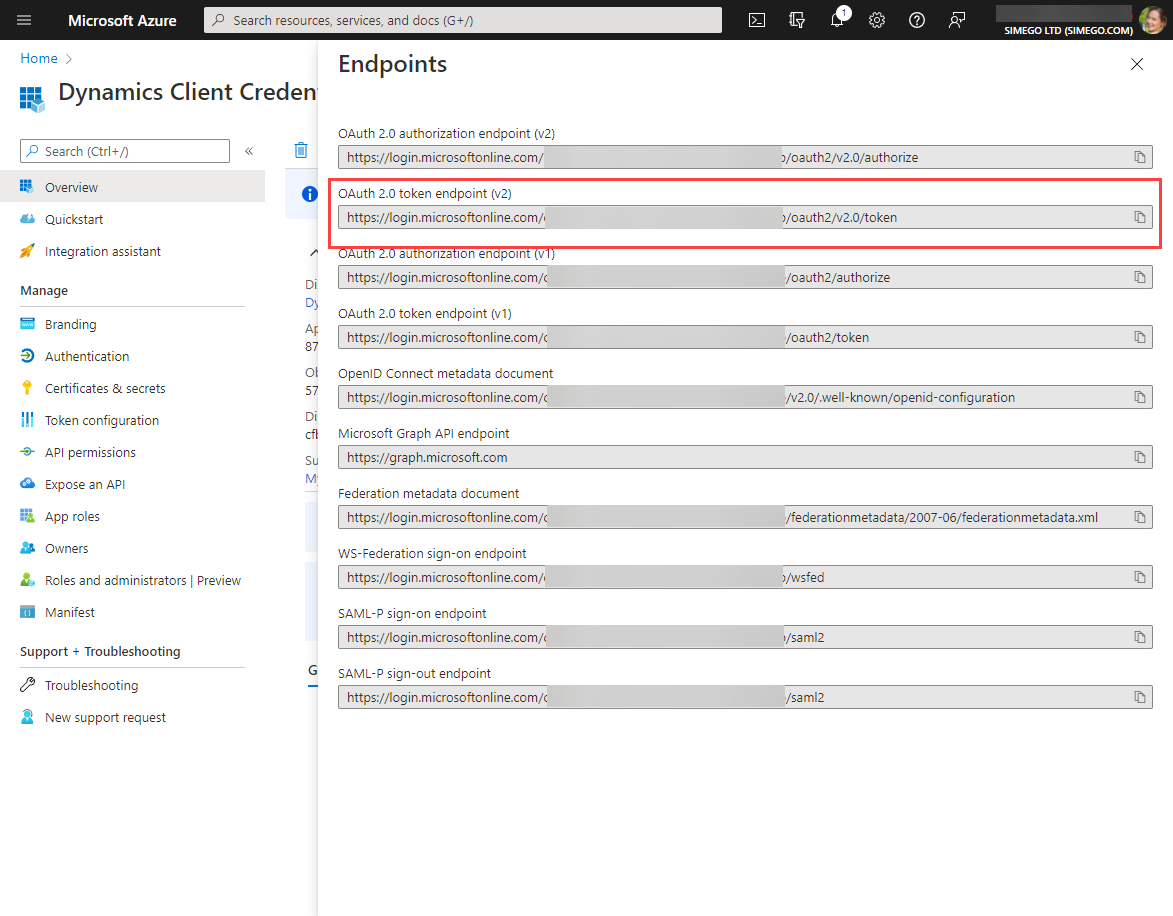
You need to gather the endpoint URLs so then you can connect in Data Sync. To do this click onto Overview > EndPoints and then copy the OAuth 2.0 token endpoint (v2).
Application Authorisation
You now need to add the application as an application user to your Dynamics site. To do this we recommend following through the Microsoft guide available here. This will walk you through using Power Platform Admin Centre to add the application with administrator permissions.
Configure Data Sync Connection
In Data Sync open the connection window, expand the Microsoft Dynamics folder, and then select the Microsoft Dynamics 365 provider.
Enter in the URL to your Dynamics site into the URL field. This will be automatically formatted to use the Organisation Service SOAP\WCF service endpoint. You can just copy and paste the URL from your site into the field, e.g. https://<domain>.crm4.dynamics.com.
Make sure that the Authentication Method is set to Custom OAuth Application and then enter in the ClientID, TokenURL, and Certificate Thumbprint (or CN name of the certificate) gathered earlier. You will also need to ensure that GrantType is set to be client_credentials.
Then click the Authorise Connection button. This will call back to Dynamics to authenticate the user/application and if it is successful your entities will become available in the Entity Name dropdown list.
Now select the entity you want to connect to from the dropdown and click on to Connect & Create Library Connection to save the connection to your local connection library.
You can then re-use the connection to your Dynamics site from the Connection Tree whenever you are creating projects or adding lookups. You can also preview the data before selecting it as your source or target.
Please note that you only need to save the connection to your site once, you will be able to access all of your entities within that site from the connection library.