Using Ouvvi with Data Sync
What is Ouvvi?
If you've been running Data Sync projects manually or scheduling them through the Run Tool and Windows Task Scheduler, Ouvvi is the next step up. It's a web-based automation server built by Simego that acts as a central control room for your Data Sync projects and wider business processes — not just data integration, but any task you need to run reliably and on a schedule.
Ouvvi lets you upload your Data Sync project files into a central server and trigger them flexibly — by time, file drops, SQL changes, SharePoint list updates, webhooks, and more.
But the possibilities go well beyond running syncs. From a single interface you can execute PowerShell and Python scripts, run SQL jobs, call external programs, send emails, move and manage files, back up databases, trigger HTTP requests, and chain any combination of these together into a workflow. If it can be scripted or automated, Ouvvi can orchestrate it.
On top of that you get real-time monitoring, full run history, version control, error notifications, and shared connection management across all your projects — so instead of managing integrations and scheduled tasks scattered across multiple machines and tools, everything runs through one place with full visibility.
Opening an Ouvvi Step from Data Sync
Data Sync has the ability to connect to your Ouvvi sites, allowing you to create new projects and add and edit Data Sync steps to these projects all from the Data Sync designer.
This is the recommended method to open or modify a Data Sync step contained within your Ouvvi site.
To get started in Data Sync open the File menu and select Open Ouvvi Project.
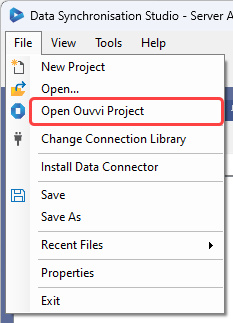
Alternatively you can use the button available in the toolbar.

Then enter in the url to your Ouvvi site and select Connect. This should be similar to http://localhost:8080.
You can then browse for the step you want to edit by expanding the tree and then either double click or right click and select Open from the list.
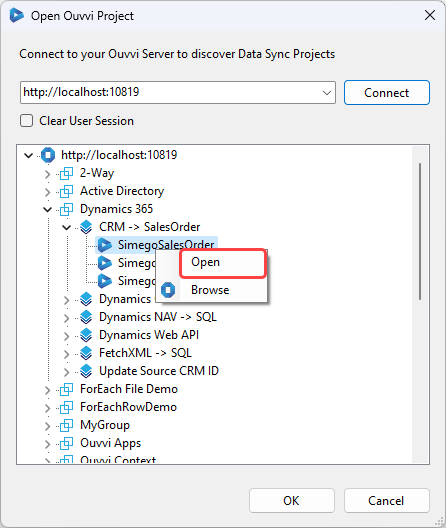
You can check that a project is connected to your Ouvvi site in 4 places:
1 - The title bar will show the Ouvvi URL
2 - The connection library window will have [Ouvvi] at the end of the title
3 - The output window will show the Ouvvi URL for the connection library connection
4 - The registry location will be the Ouvvi site URL
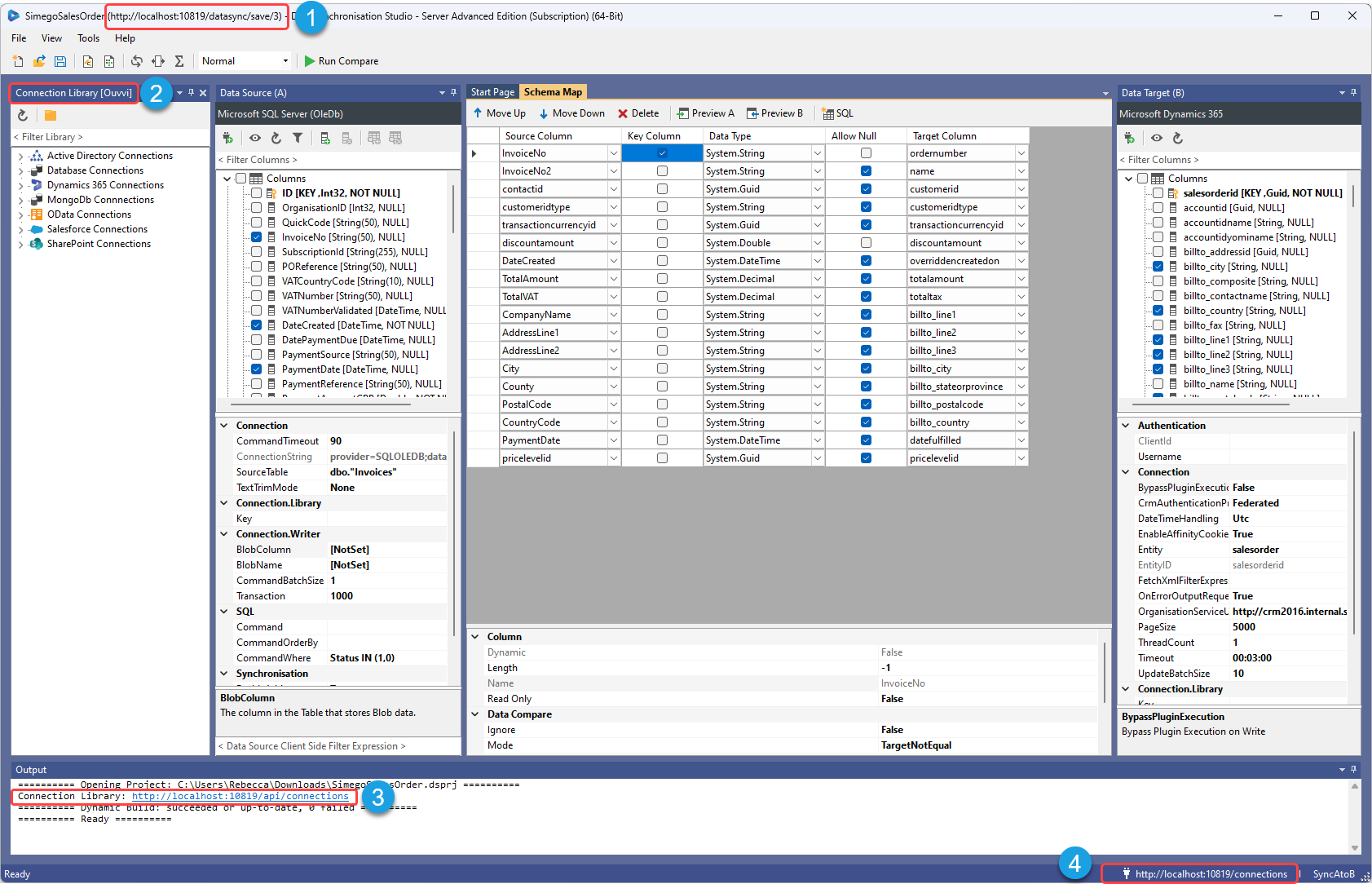
A copy of the Data Sync project will be downloaded to your downloads folder. If you open the step from your downloads folder it will not be connected to Ouvvi so you will need to follow the steps to connect to your Ouvvi site and load the project into Data Sync from the Ouvvi browsing window.
Opening a Data Sync Project from Ouvvi
Our recommended way of opening an Ouvvi Data Sync step is to connect in Data Sync, however you can also open your project files from your Ouvvi site.
To open the step from the Ouvvi UI select Open DataSync Project button from the step page or by clicking onto the arrow by the step name on the project page and selecting Open in Data Sync Designer.
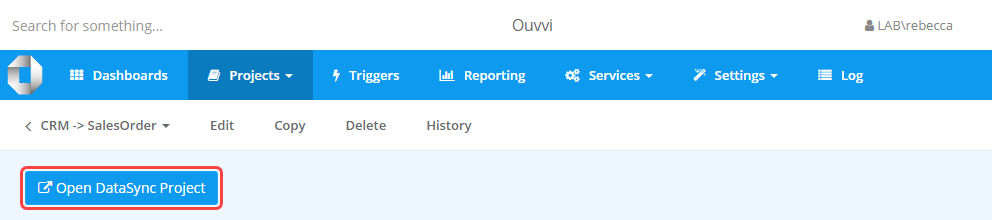

This will download a copy of the Data Sync project locally and connect to your Ouvvi site.
You can see that it is connected to your Ouvvi site in 4 places:
1 - The title bar will show the Ouvvi URL
2 - The connection library window will have [Ouvvi] at the end of the title
3 - The output window will show the Ouvvi URL for the connection library connection
4 - The registry location will be the Ouvvi site URL
If you open the step from your downloads folder it will not be connected to Ouvvi so you will need to follow the steps to connect to your Ouvvi site and load the project into Data Sync from the Ouvvi browsing window.