Dataverse to SQL Step
The Import Dataverse Entities step imports one or more Dataverse entities directly into SQL Server as part of a Run Tool project.
The step handles table creation and schema synchronisation automatically making it straightforward to set up reporting from SQL tables, environment backups, or data migrations without needing to configure individual projects for each entity.
Note that you need to have already created and saved your connections to Dataverse and SQL Server in the Data Sync connection library.
Deletes are hard deletes — if a record is no longer present in the source Dataverse environment it will be permanently deleted from the SQL database.
Adding the Step
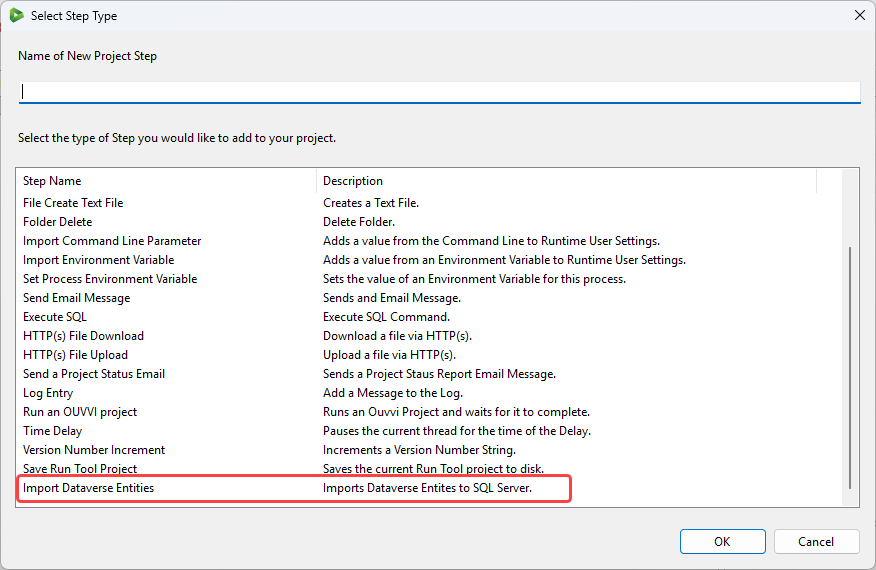
Open the Run Tool and click Add Step, then select Import Dataverse Entities from the list. Enter a name for the step and click OK.
Configuration
This opens the configuration window where you define your connections and the entities to synchronise.
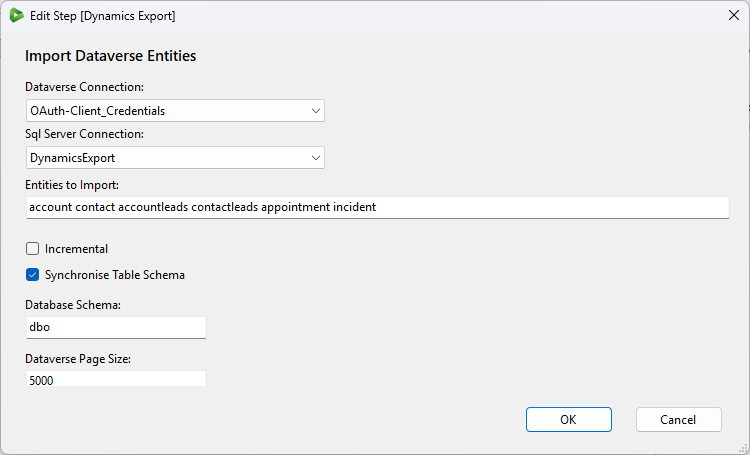
The table below explains what each parameter is:
| Parameter | Description |
|---|---|
| Dataverse Connection | Select your Dataverse connection from the dropdown. Connections are loaded from the Data Sync Connection Library. Only OAuth Client Credentials and OAuth Client Credentials with Certificate authentication flows are supported. |
| SQL Server Connection | Select the target SQL Server connection from the dropdown. Only SQL Server SQL Client connections are supported. Connections are loaded from the Data Sync Connection Library. Tables will be created automatically if they do not already exist. |
| Entities | The Dataverse entities to import. Multiple entities can be separated by a space, comma, or semicolon — for example account contact, account,contact, or account;contact. We recommend picking one separator and using it consistently. |
| Incremental | When enabled, only new and modified records are imported rather than the full dataset. This results in a faster sync but will not detect or process deleted records. |
| Synchronise Table Schema | When enabled (default), the SQL table schema will be checked on each run and any changes applied, such as new or renamed columns. Disable this if your tables are already correctly defined and you want to skip the schema check for performance. |
| Database Schema | The SQL schema to use for the imported tables. Defaults to dbo. Use a custom schema such as crm to keep your Dataverse data isolated from other tables in the same database, or when exporting from multiple Dataverse environments into the same database. |
| Dataverse Page Size | The number of records fetched per page from Dataverse. Defaults to 5000. Reduce this for entities with large data such as attachments or files to avoid timeouts. |
Once you are satisfied with the configuration click OK to add the step to your project. You can then reorder it within the project, set a run condition, and save.