Additional Configurations
Below you will find the documentation covering what DSCACHE files are and how to change the file location of where they are stored, and how to configure Ouvvi and Data Sync to use your Proxy Server.
DSCACHE
The DSCACHE files are temporary files used during the sync process, they contain a copy of the Data Source Data and can be safely deleted.
The files are automatically deleted during the .NET Garbage Collection however sometimes they are left behind using up disk space.
DSCACHE File Location
If you want to move the file location that Data Sync uses to store it’s temporary cache files during the data load and compare you should create a System Environment Variable called DATASYNCCACHEPATH that points to the new file location.
The folder must exist and it should not be a network share.
Create a System Environment Variable
To create a system environment variable you need to open the settings window and search for Advanced system settings.
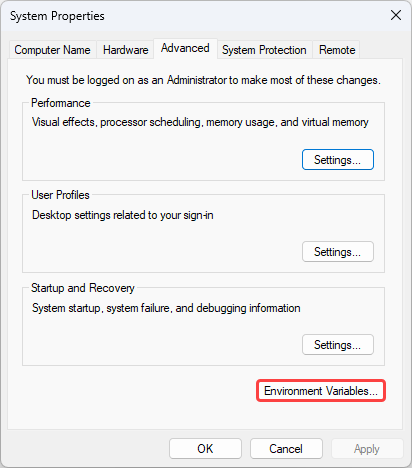
This will open the system properties window where you need to click onto the Environment Variables button to open the window.
Now click onto New under system variables.
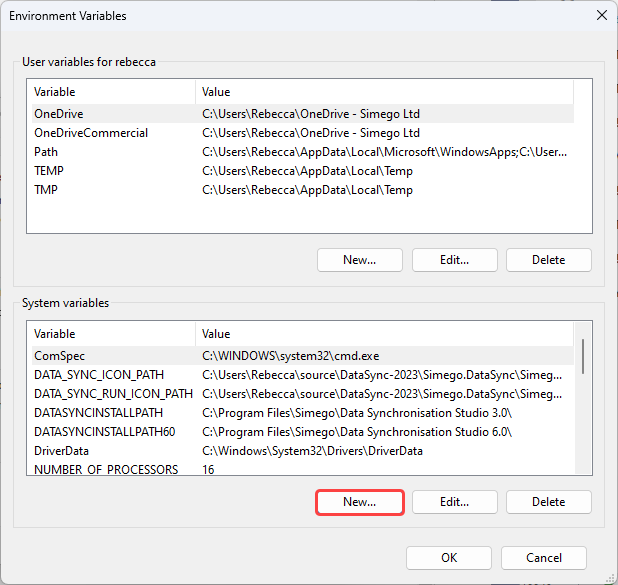
Then type in the variable name DATASYNCCACHEPATH and the path to the location you want the cache to be into the variable value field.

You then should log off and log back in for the environment variable to take effect. At a minimum you need to close Data Sync (and the Run Tool).
Proxy Server
If your network has a proxy server you may need to configure Data Sync and Ouvvi to use your Proxy Server.
The .NET framework provides for a Proxy server configuration as part of the application configuration see the Microsoft page here.
You will need to apply the configuration to:
- The .config files in your Data Sync Install Directory
C:\Program Files\Simego\Data Synchronisation Studio 6.0 - The Ouvvi Service .config file
C:\Program Files\Simego\Ouvvi\Service\Simego.Console.Service.exe.config - The Ouvvi Web .config file
C:\Program Files\Simego\Ouvvi\Web\web.config
Below you can find an example server settings specifying a Proxy Server Address and to use the current user credentials:
<configuration>
    <system.net>
        <defaultProxy useDefaultCredentials="true">
            <proxy uesystemdefault="True" proxyaddress="http://my-proxy-name:80" bypassonlocal="True" />
        </defaultProxy>
    </system.net>
</configuration>
When you upgrade your installation these setting files will be overwritten by the installer since they are part of the install you should make a note of the procedure to update these for future reference.