Data Source Filter
The Data Source Filter feature in Data Sync allows you to filter your source and target data to include or exclude specific rows based on a C# code expression.
Source and Target Filtering
Filtering can be applied to both the source (Data Source A) and target (Data Source B) windows. There are however some differences between the two:
- The source filter supports filtering via the filter textbox, the filter window, or directly in Dynamic Columns using the
BeginRow()method. - The target filter supports filtering via the filter textbox and the filter window only.
Filtering the target dataset carries a high risk of creating duplicate data. If you filter rows out of the target but then sync rows that match those filtered records, Data Sync will treat them as new additions and insert them again. Use target (Data Source B) filtering carefully.
Applying a Filter
You can apply a filter using the filter button in the data source toolbar, or by typing an expression directly into the filter textbox at the bottom of the data source window.
The filter button opens a syntax editor window with intellisense to help you write the correct expression, while the filter textbox allows you to type an expression directly without opening the editor.
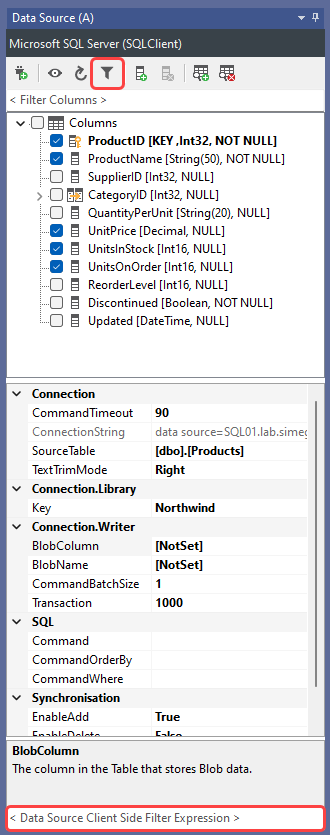
When you click the filter button a syntax editor with intellisense will appear to help you write the correct filter syntax. Once you've entered your expression, click OK to apply the filter.

The filter expression must return True to include the row in the results, or False to exclude it.
The filter will only be applied to data previewed from the schema map. Using the preview button on the data source window will still return all records.
If you want to delete all target rows in your project, you can simply enter a 0 in the filter box to exclude all source rows.
To edit a filter, you can either edit the expression directly in the filter box or click the filter button to reopen the syntax editor.
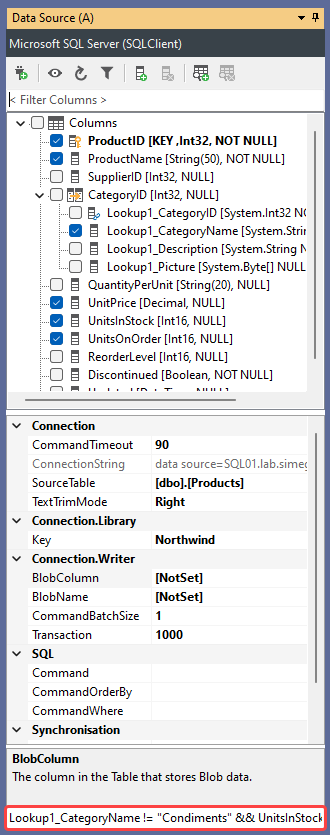
Filtering in Dynamic Columns
For source filtering only, you can also write filters directly into the Dynamic Columns base class using the BeginRow() method. This is equivalent to using the filter expression but gives you the full flexibility of C# within your Dynamic Columns class.
The example below excludes rows where the category is "Condiments" and where stock is 10 units or fewer:
public override bool BeginRow()
{
    return Lookup1_CategoryName != "Condiments" && UnitsInStock > 10;
}
Functions within Dynamic Columns such as BeginRow() are only available for source (Data Source A) filtering. It cannot be used to filter the target dataset.
Server Side Filtering
While the Data Source Filter is useful for quick filtering of small datasets, it is not recommended for larger datasets as it loads all records into memory before filtering, which can cause performance issues.
For larger datasets, consider using a server-side filter through the connection properties instead. This ensures only the required rows are returned from the data source rather than the full dataset.
For example:
- SQL — use a
WHEREclause to filter data on the database server. - SharePoint — use a view or CAML query to filter data on the SharePoint server.
- Dynamics CRM — use a Fetch XML filter expression to filter data on the Dynamics CRM server.
By pushing filtering to the server you can significantly improve performance and reduce the risk of timeouts or memory issues on large datasets.