Schema Map Properties - Data Compare Column Options
In the Schema Map properties, you can change the Data Compare Settings on a column-by-column basis to control the comparison of data in Data Sync.
Generally you do not need to change the Schema Properties. Please only change them if you fully understand how this will affect your results and synchronisation.
If you are unsure if you need to change the default settings, please contact us at support@simego.com and we can help you further.
Open Schema Property Grid
To open the schema properties click onto the Properties button in the schema map toolbar. This will open the schema property grid to the right of the schema map.

Clicking onto this button again will close the property grid.
Ignore
The Ignore setting prevents Data Sync from comparing the value and generating an UPDATE action for this column. However, if any other column causes an UPDATE action, the value of this column will be added to the change set. This is useful when you want to to exclude a column from triggering updates but force the column's value to always be sent to the target.
Mode
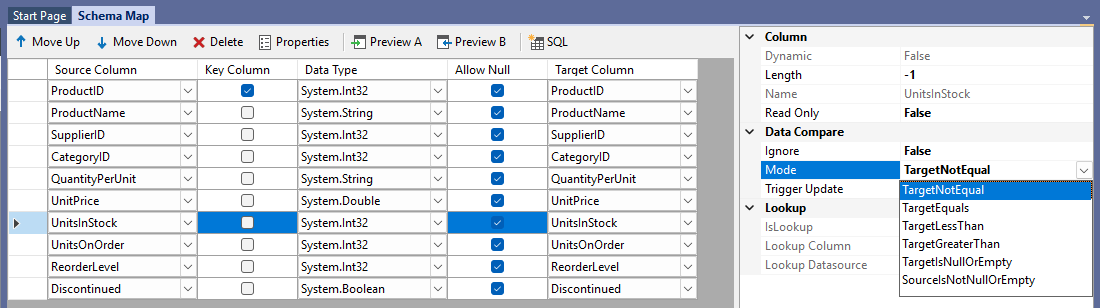
The Data Compare Mode controls how the values in the source and target are compared for UPDATE actions. By default, Data Sync compares if the values from each side are equal. However, there are different modes available to suit different scenarios:
- TargetNotEqual: This is the default mode where a change is detected when the values are not equal.
- TargetEqual: A change is detected when the values are equal.
- TargetLessThan: A change is detected when the target value is less than the source. This is typically used in 2-way sync scenarios to prevent updates to a row when the modified date is greater on the target.
- TargetGreaterThan: A change is detected when the target value is greater than the source.
- TargetIsNullOrEmpty: A change is detected when the target value is null or empty and the source has a value.
- SourceIsNotNullOrEmpty: A change is detected when the source has a value and the target is not equal to the source.
You can find the Data Compare Mode options in the image below:
Trigger Update
The Trigger Update setting controls whether a change detected on a column will cause an UPDATE action to be created for that row. By default this is set to True, meaning any change detected on the column will trigger an update. Setting it to False means changes on that column alone will not trigger an update — however if another column with TriggerUpdate=True detects a change, the row will still be updated and this column's value will be included in the change set.
The Trigger Update setting is typically used in conjunction with the Mode setting to give you fine-grained control over when updates occur.
For example, in a 2-way sync scenario where you have a modified DateTime value on each side which is updated when the row is changed, you would create two projects running in different directions.
In the first project, you would set TriggerUpdate=False on all columns in the Schema Map except for the Modified column, and then set the Mode=TargetLessThan for the Modified column. This ensures that Data Sync only compares the values on this row when the target Modified value is less than the source, i.e., the source is more recent.
In the second project, you can set up the project as normal but in reverse. You then set the projects to run after each other in Ouvvi or the Run Tool.
Read Only
The Read Only property allows you to set if a column should be read only. This is useful if there are columns in your schema needed to identify changes, however that column in the target system is read only. Syncing to a read only column will throw an error, potentially causing your synchronisation project to fail.
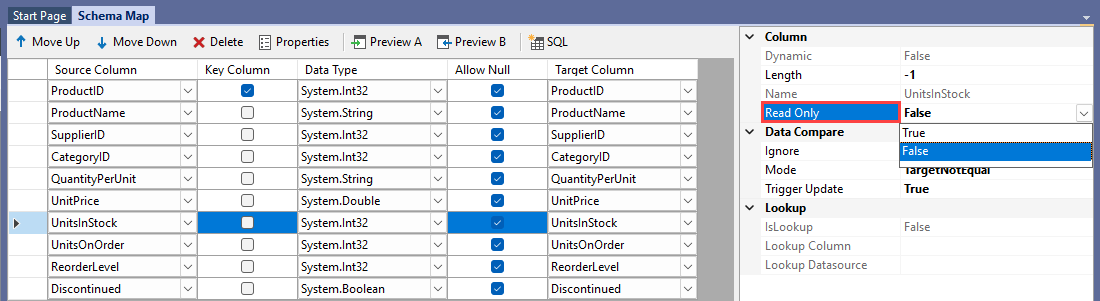 When Read Only is set to True the value of that column is not sent to the target but is used to evaluate the records in the comparison.