Dynamic Columns
Dynamic Columns are similar to Calculated Columns, but with Dynamic Columns you write the code as a C# Property in a Class file.
Dynamic Columns allow you to use the full .NET Framework, giving you the power to create complex data transformations.
In it's most basic form a Dynamic Column is the result of a C# Property getter, the name of the Property becomes the column name and the result is calculated at runtime during Data Load.
public string MyNewValue
{
	get { return "myValue"; }
}
The Dynamic Columns class is created just before the Data is loaded for Data Source (A). This single instance is valid for the duration of the load and BeginRow() is called for each row, giving you a chance to set your property values.
Returning False from BeginRow() will remove the row from the result.
The Start() method allows you set any initialisation you need before the rows are processed.
Enable Dynamic Columns
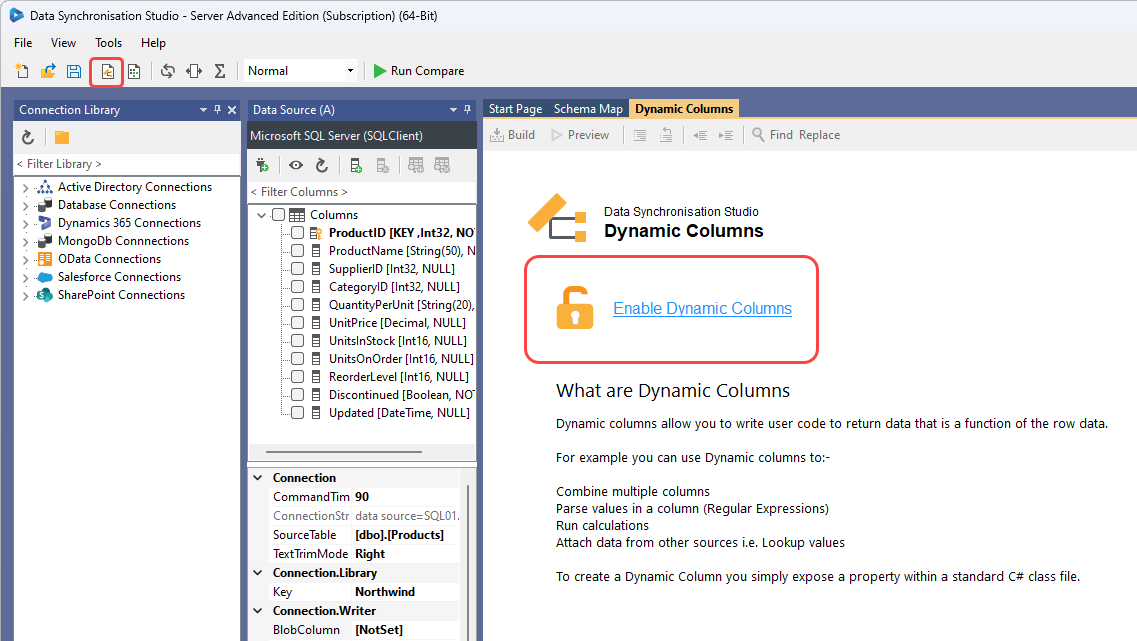
To enable Dynamic Columns press the Dynamic Columns button on the toolbar and click Enable Dynamic Columns. This will create the initial Dynamic Columns class template.
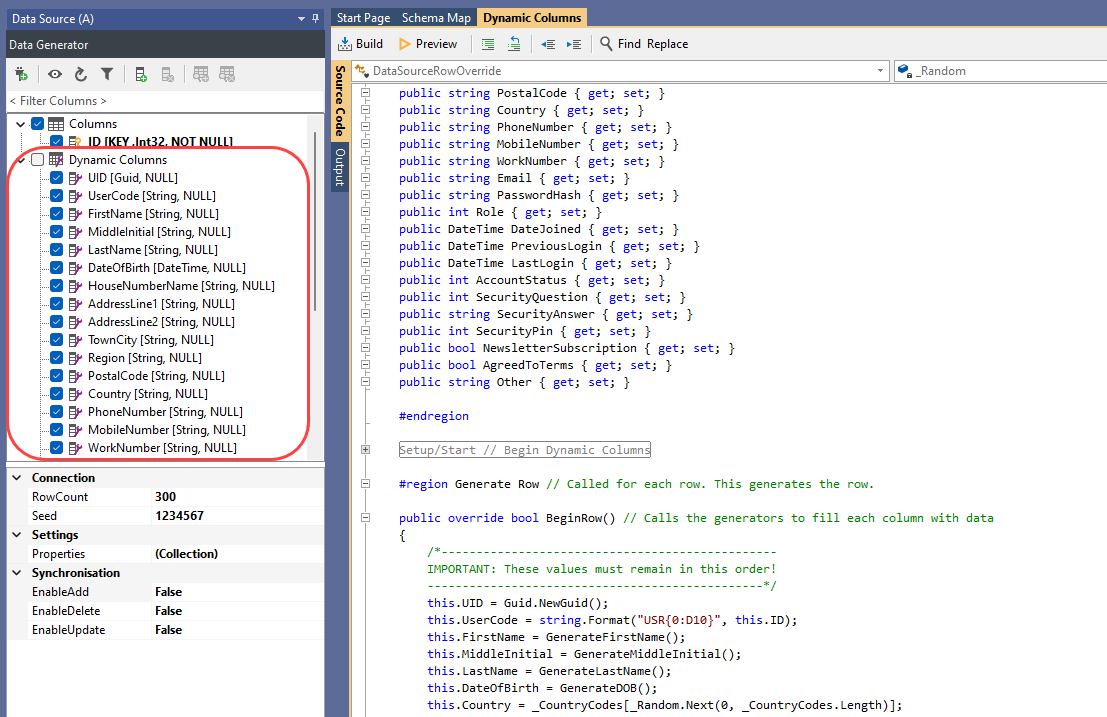
When you create dynamic columns they will appear in your data source column list under their own Dynamic Columns* header.
Dynamic Columns Examples
Below you can find a few examples of how you can use Dynamic columns within your Data Sync projects.
Setting a Discount Rate Based on Order Number
This example shows creating a column called MyRate and sets the discount code based on number of orders accordingly.
This uses columns from a lookup (created using the standard drag drop lookup) into another table to get total number of orders for a user.
partial class DataSourceRowOverride : Simego.DataSync.DynamicColumns.DataSourceRowInternal //Do Not Change This Line
{
	public double MyRate { get; set; }

	public override bool BeginRow()
	{
		// Default Discount Rate
		MyRate = 0.1;

		// After 30 Orders 30%
		if(Lookup1_NumOfOrders >= 30)
			MyRate = 0.30;

		// After 10 Orders 20%
		if(Lookup1_NumOfOrders >= 10)
			MyRate = 0.20;

		// After 5 Orders 15%
		if(Lookup1_NumOfOrders >= 5)
			MyRate = 0.15;

		return true; // return false to skip row from results.
	}
}
Once Build has been clicked, the column will appear in the Data Source A column list and can be added to the schema and mapped to the corresponding target column.
Extract Multiple-Value Columns Into New Rows
This example takes a CSV file where the Regions column stores multiple values separated by a | delimiter.
The dataset looks like this:
| ID | ProductName | Category | Price | Currency | Regions |
|---|---|---|---|---|---|
| 1 | Industrial Safety Gloves | Personal Protective Equipment | 24.99 | GBP | North|South|East |
| 2 | Cable Management Tray | Infrastructure | 49.99 | GBP | North|West |
The below code is going to create a new row for each region within regions, and return the other original columns. The original row is removed from the results.
partial class DataSourceRowOverride : Simego.DataSync.DynamicColumns.DataSourceRowInternal
{
	public string Region { get; set; }

	private bool processingRow = false;

	public override bool BeginRow()
	{
		// Prevent re-entry when we're already adding the new rows
		if (processingRow) return true;

		processingRow = true;

		if (!string.IsNullOrEmpty(Regions))
		{
			string[] regions = Regions.Split('|');

			foreach (string region in regions)
			{
				var row = Table.NewRow();
				row["ID"] = ID;
				row["ProductName"] = ProductName;
				row["Category"] = Category;
				row["Price"] = Price;
				row["Currency"] = Currency;

				Region = region.Trim();

				Table.Rows.Add(row);
			}
		}

		processingRow = false;

		// Remove the original row — the new per-region rows replace it
		return false;

	}
}
This would then produce the following output. Because ID how contains duplicate values you would use a composite key of both ID and Region to create the unique record.
| ID | ProductName | Category | Price | Currency | Region |
|---|---|---|---|---|---|
| 1 | Industrial Safety Gloves | Personal Protective Equipment | 24.99 | GBP | North |
| 1 | Industrial Safety Gloves | Personal Protective Equipment | 24.99 | GBP | South |
| 1 | Industrial Safety Gloves | Personal Protective Equipment | 24.99 | GBP | East |
| 2 | Cable Management Tray | Infrastructure | 49.99 | GBP | North |
| 2 | Cable Management Tray | Infrastructure | 49.99 | GBP | West |
Some data sources use Identifier Data to hold the ID of the source record therefore you need to use Table.Rows.AddWithIdentifier(row, row.ItemIdentifierData); with these to copy the identifier data into the new row.
Removing Dynamic Columns
To remove a single dynamic column, simply delete the Property Declaration from the Class.
To remove all Dynamic Columns, simply delete all the code from the Dynamic Columns window.
Creating a Function for Calculated Columns
Adding a public method to the Dynamic Columns class makes it available to Calculated Columns.
If you create a function you need to call multiple times, it is preferred to create the function in Dynamic Columns and use Calculated columns to call it.