Pass Ouvvi User Settings into Data Sync Projects
This guide explains how to utilize Ouvvi User Settings within your Data Sync projects.
Properties Passed from Ouvvi
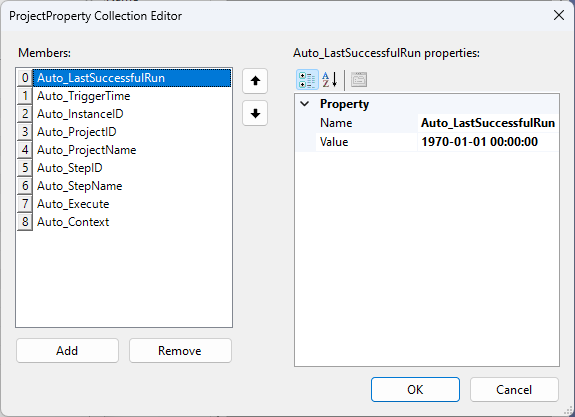
Ouvvi automatically passes certain settings into Data Sync projects that can be used within Project Automation. These range from the project name, trigger time, last successful run and the context to name a few.
To view the settings automatically passed from Ouvvi into Data Sync you need to start by opening a Data Sync project from Ouvvi and then open the File menu and select Properties. Then click onto the ellipsis in the Properties field to open the properties collection editor and you will be able to see all of the settings being automatically passed from Ouvvi into Data Sync.
Create a Property
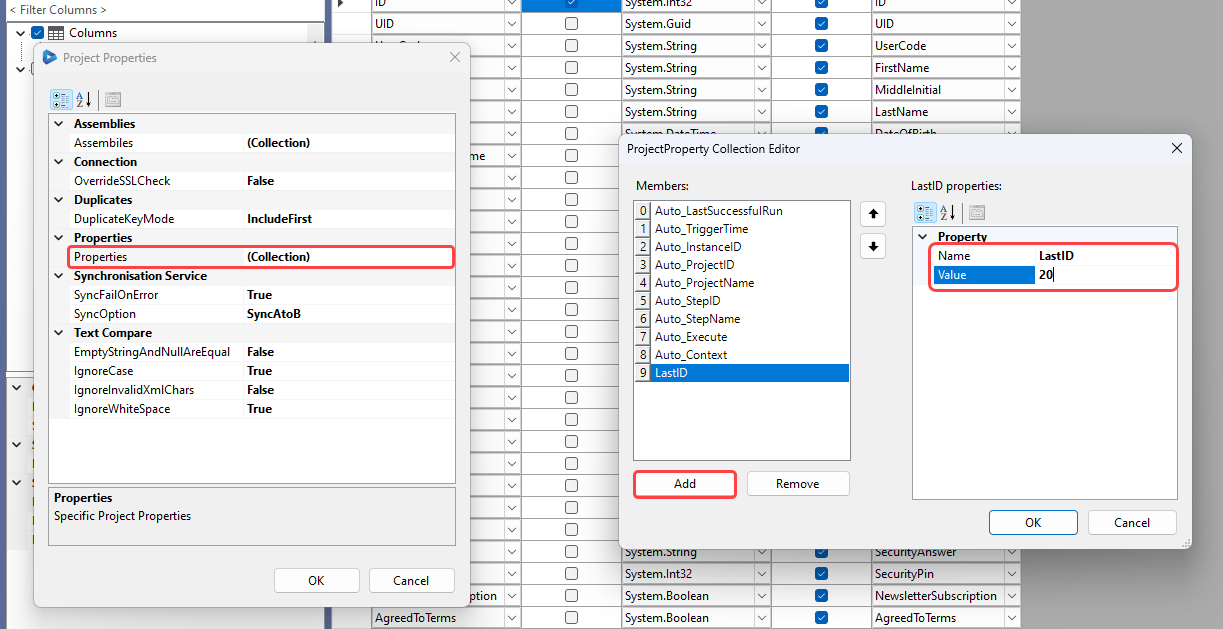
To pass User Settings from Ouvvi into your Data Sync projects, you need to create a new Property in Data Sync with the same name as one in Ouvvi.
To create a new property, go to File > Properties> Properties, open the collection editor and click Add to create a new property.
Enter in the property name and a value and click OK add it to the properties collection.
Use the Property with Project Automation
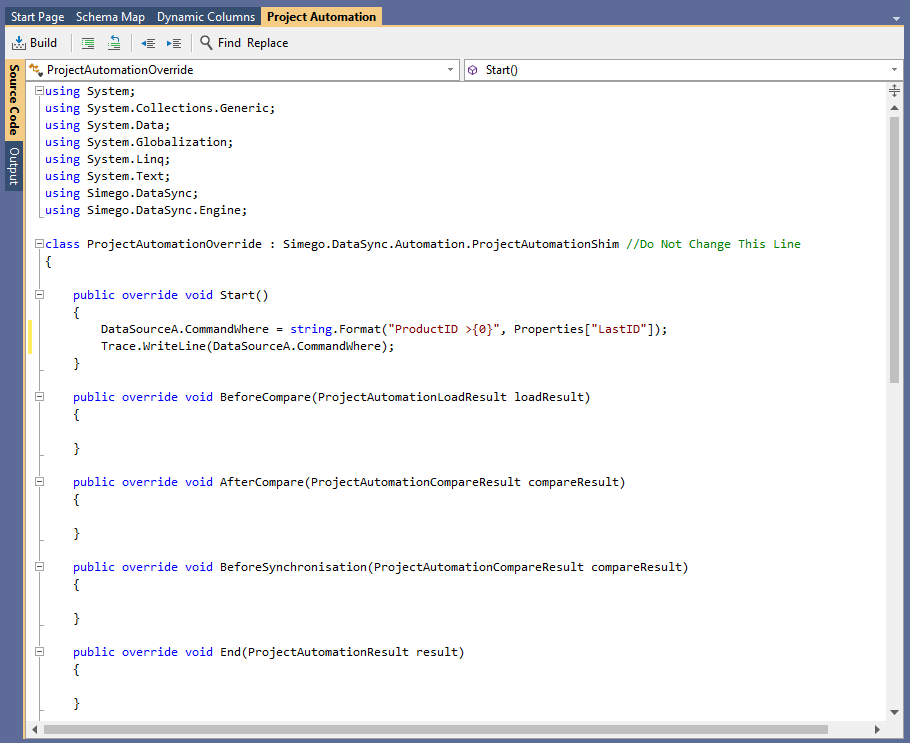
To use this new property with your project you need to write code within the Project Automation Start() method to apply the change to your data source configuration, such as modifying the Where clause on the SQL Provider.
To get a value from the Properties Collection, simply access it by the indexer.
For example to get the LastID property added earlier you can use: Properties["LastID"]
	public override void Start()
	{
		DataSourceA.CommandWhere = string.Format("ProductID >{0}", Properties["LastID"]);
		Trace.WriteLine(DataSourceA.CommandWhere);
	}
Now when the User Setting value is updated in Ouvvi, it is also updated in the Properties of the project at runtime.
Values Service
The Values Service allows Data Sync projects running in Ouvvi to read from and write back to Ouvvi User Settings at runtime. This is useful in Project Automation for dynamically updating connection configuration properties or persisting values such as timestamps between project runs.
The Values Service is only available when the Data Sync project is running in the context of Ouvvi.
Reading a Value
Use GetValue to retrieve a user setting by name. If the setting doesn't exist, the default value you provide will be returned instead.
The example below reads a string user setting called MySetting in the Start method of project automation, writing the value to the output window. If the setting doesn't exist, "My Default Value" is returned instead.
public override void Start()
{
    Trace.WriteLine(ValueStoreService.GetValue<string>("MySetting", "My Default Value"));
}
This example shows getting a LastSyncTime value from an Ouvvi Value Store Service, where the value doesn't exist a default value is returned (today's date minus 10 years).
var startDate = ValueStoreService.GetValue<DateTime>("LastSyncTime", DateTime.Today.AddYears(-10));
Writing a Value
Use SetValue to write a value back to Ouvvi User Settings. If the setting already exists it will be updated, if it doesn't exist it will be created.
The example below records the project start time when the project completes successfully and has changes. This value can then be referenced in subsequent Ouvvi steps, such as an email notification.
private DateTime StartValue = DateTime.UtcNow;

public override void End(ProjectAutomationResult result)
{
    if(result.Success && result.HasChanges)
    {
        ValueStoreService.SetValue<DateTime>("ProjectStartTime", StartValue);
    }
}