User Settings
User Settings in Ouvvi act as expansion values — placeholders wrapped in double curly brackets that are replaced with their actual value at runtime. For example, a user setting named FileLocation with a value of C:\Data\Exports would be referenced anywhere in Ouvvi as {{FileLocation}}, and when the project runs, Ouvvi will substitute the placeholder with C:\Data\Exports automatically.
This makes user settings useful in two ways:
Reusable configuration — define a value once and reference it across as many projects, steps, and triggers as you need. If the value ever changes, update it in one place and every project that uses it will pick up the change automatically.
Dynamic runtime values — Ouvvi provides a set of built-in default settings that are evaluated at runtime, such as the current date, time, machine name, and system paths. These can be used to generate dynamic file names, email subjects, parameters, and more.
User settings can be used in any configuration field throughout Ouvvi. On some fields a cog icon (⚙) will appear which opens the Configuration String Builder — a helper tool that shows all available user settings and their current values. Clicking on a setting name in the list will insert it into the field. If you already know the name of the setting you want to use, you can type it directly into any field without using the builder.
Note that selecting a setting from the Configuration String Builder will replace the entire current value of the field. If you need to combine a setting, or multiple settings with other text, type the {{SettingName}} placeholder manually into the field instead.
Managing User Settings
Adding a User Setting
To add a new user setting open the Settings menu and select User Settings, then click the Add Settings button.
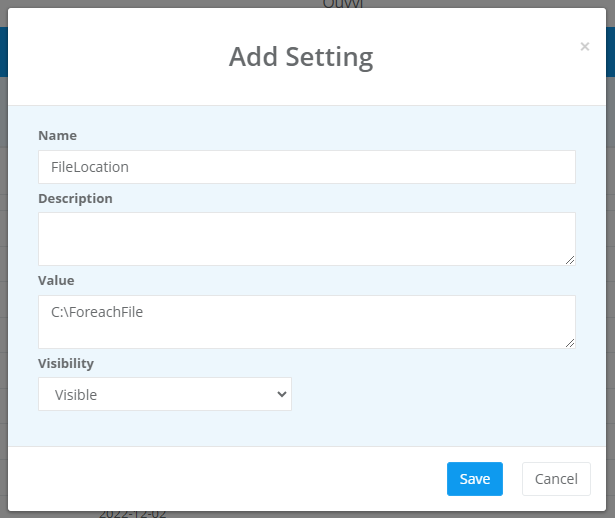
Enter a name, an optional description, and the value for the setting. Choose the appropriate visibility option and click Save to create it.
Visibility Options
When creating a user setting you can control how the value is displayed in the user settings table:
| Option | Description |
|---|---|
| Visible | The value is shown in plain text in the user settings table. |
| Hidden | The value is masked with asterisks (*). |
| Connection String | Use this when the value is a connection string so that Ouvvi handles it correctly. |
| Encrypted | The value is encrypted and displayed in its encrypted form when the setting is opened. |
Editing a User Setting
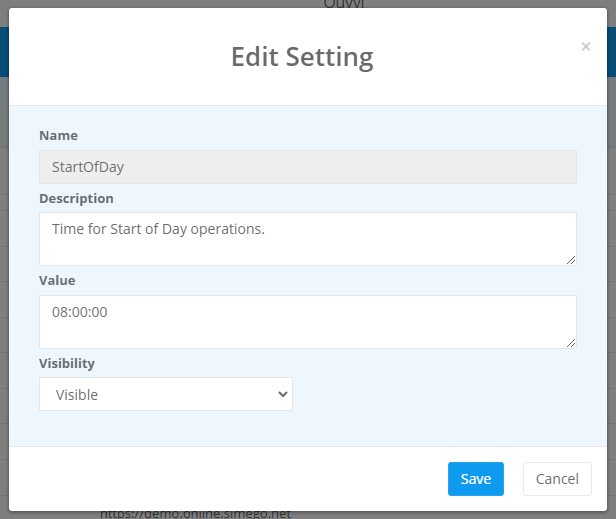
Navigate to Settings > User Settings and click on the name of the setting you want to edit. Make your changes in the popup window and click Save to apply them.
Deleting a User Setting
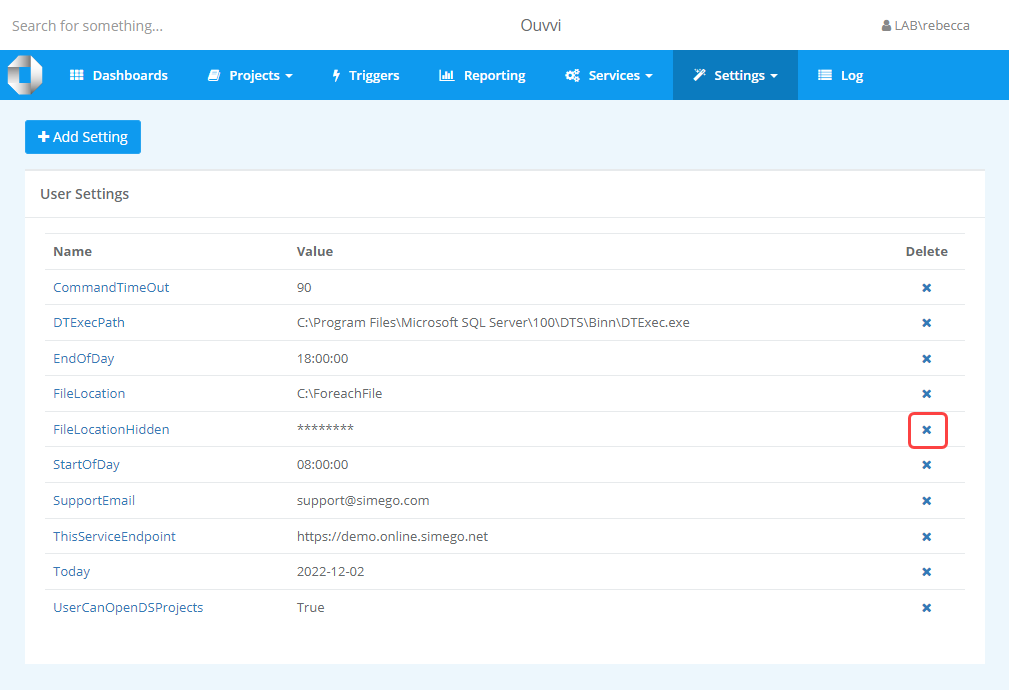
Navigate to Settings > User Settings and click the X next to the setting you want to delete. Confirm the deletion in the popup that appears.
Deleting a user setting will not remove the {{SettingName}} placeholder from any projects or steps that reference it. Those references will no longer resolve at runtime, which may cause errors. Make sure to remove or replace any references before deleting a setting.
Using User Settings
To use a user setting, type the setting name surrounded by double curly brackets into any configuration field. For example:
{{FileLocation}}
You can also combine settings with static text and other settings in the same field:
{{FILEDATE}}_{{FILETIME}}_export.csv
{{AppTitle}} - Sync completed on {{DATE}} at {{TIME}}
Examples
| Scenario | Example |
|---|---|
| Timestamped file name | export_{{FILEDATE}}_{{FILETIME}}.csv |
| Email subject line | {{AppTitle}} - Daily Export Completed {{DATE}} |
| File path using a shared location | {{FileLocation}}\output_{{DATE}}.csv |
| PowerShell script parameter | {{MACHINE}} |
| SQL connection string | {{SQLNorthwindConnection}} |
Using the Configuration String Builder
On fields where the cog icon (⚙) is present, clicking it opens the Configuration String Builder. This shows a list of all available user settings — both your own and the built-in defaults — along with their current values, making it easy to find the setting you need.
Click on any setting name to insert it into the field. Note that each selection will replace the entire field value, so if you need to combine multiple settings or mix a setting with static text, close the builder and edit the field manually.
Built-in Default Settings
Ouvvi includes a set of built-in default settings that are evaluated at runtime. These are available in every Ouvvi instance without any configuration and appear in the Configuration String Builder alongside your own user settings.
Date & Time
All date and time values are evaluated at the moment the step runs.
| Setting | Description | Example Value |
|---|---|---|
{{DATE}} | Current date in yyyy-MM-dd format. | 2026-04-15 |
{{FILEDATE}} | Current filedate in yyyyMMdd format. | 20260415 |
{{FILETIME}} | Current filetime in HHmmss format. | 142938 |
{{TIME}} | Current time in HH:mm:ss format. | 14:29:38 |
{{YEAR}} | Current four-digit year. | 2026 |
{{MONTH}} | Current two-digit month. | 04 |
{{DAY}} | Current two-digit day of the month. | 15 |
{{HOUR}} | Current two-digit hour (24-hour clock). | 14 |
{{MIN}} | Current two-digit minute. | 29 |
{{SEC}} | Current two-digit second. | 38 |
{{MinOfDay}} | The start of the current day. Useful for time-based filtering. | 00:00:00 |
{{MaxOfDay}} | The end of the current day. Useful for time-based filtering. | 23:59:59 |
System & Environment
These values are resolved from the server environment at runtime. Values marked as account dependent will be empty if the Ouvvi service is running under a system account such as Network Service, as these accounts do not have a user profile.
| Setting | Description | Example Value |
|---|---|---|
{{MACHINE}} | The name of the machine Ouvvi is running on. | WM1 |
{{USERNAME}} | The username of the account running the Ouvvi service. | WM1$ |
{{DOMAIN}} | The domain of the machine Ouvvi is running on. | WORKGROUP |
{{WINDOWS}} | Path to the Windows directory. | C:\WINDOWS |
{{SYSTEM}} | Path to the Windows System32 directory. | C:\WINDOWS\system32 |
{{SYSTEMX86}} | Path to the Windows SysWOW64 directory. | C:\WINDOWS\SysWOW64 |
{{PROGRAMFILES}} | Path to the Program Files directory. | C:\Program Files |
{{PROGRAMFILESX86}} | Path to the Program Files (x86) directory. | C:\Program Files (x86) |
{{COMMONAPPLICATIONDATA}} | Path to the common application data directory. | C:\ProgramData |
{{TEMP}} | Path to the system temporary files directory. | C:\WINDOWS\TEMP\ |
{{OUVVITEMP}} | Path to the Ouvvi temporary files folder. | C:\ProgramData\Simego\Ouvvi\Temp |
{{APPLICATIONDATA}} | Path to the roaming application data folder for the service account. | Account dependent |
{{LOCALAPPLICATIONDATA}} | Path to the local application data folder for the service account. | Account dependent |
{{PERSONAL}} | Path to the personal documents folder for the service account. | Account dependent |
{{APPPATH}} | Path to the directory containing the Ouvvi application files. Primarily useful when developing custom step handlers. | Varies |
Utility
| Setting | Description | Example Value |
|---|---|---|
{{NEWGUID}} | Generates a new unique GUID each time it is evaluated. Useful for creating unique identifiers at runtime. | {8450e2a4-948e-49e0-af53-56aebd184dca} |
ServiceShutdownAt
Creating a user setting named ServiceShutdownAt schedules the Ouvvi service to automatically shut down at a specified time. This is useful for performing nightly restarts to clear memory, reset long-running connections, or apply updates without manual intervention.
The value uses Ouvvi server time and must be entered in 24-hour format with seconds. The following formats are supported:
| Format | Example | Description |
|---|---|---|
HH:mm:ss | 03:30:00 | Shut down every day at the specified time. |
*,HH:mm:ss | *,03:30:00 | Shut down every day at the specified time (explicit wildcard). |
Day|Day,HH:mm:ss | Mon|Tue,03:30:00 | Shut down on specific days of the week at the specified time. |
Times must be entered in 24-hour format with seconds, e.g. 03:30:00 for 3:30 AM or 15:30:00 for 3:30 PM.
This setting shuts down the Ouvvi service but does not restart it automatically. You must configure the Windows Service recovery settings to restart the service after shutdown, otherwise Ouvvi will remain offline until manually started.
Configuring Automatic Restart
To ensure Ouvvi restarts automatically after a scheduled shutdown, configure the Windows Service recovery settings on the Ouvvi server:
- Open Services (
services.msc). - Right-click the Ouvvi service and select Properties.
- Go to the Recovery tab.
- Set First failure, Second failure, and Subsequent failures to Restart the Service.
- Set Restart service after to
3minutes to allow time for any in-progress operations to complete before the service comes back online. - Set Reset fail count after to
1day. - Click OK to save.
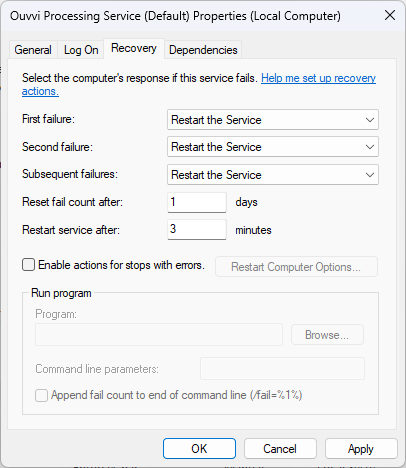
With these settings in place, Windows will automatically restart the Ouvvi service after the scheduled shutdown, making the restart fully unattended.
LogDeleteBatchSize
Creating a user setting named LogDeleteBatchSize controls how many log records are deleted per batch when Ouvvi cleans up old log entries. By default Ouvvi will delete up to 5000 log records in a single operation. This is run by the maintenance agent every 5 minutes. If you need to change this value to more or less, use the LogDeleteBatchSize user setting.
Avoid setting this value too high. A large batch size can create a table lock on the log table which may cause a timeout and prevent the cleanup from completing.