Edit DataSync Project XML
From version 6.0.3586, Ouvvi includes a built-in editor that allows you to make direct changes to a Data Sync project's raw XML file from within the Ouvvi web interface, without needing to open the project in the Data Sync Designer. This makes a great option for quick changes when migrating Ouvvi systems without having to leave the browser window.
In this you are editing a simplified version of the Data Sync project XML. Incorrect changes can corrupt the project or cause unexpected behaviour. If you are unsure of the changes you need to make, open the project in the Data Sync Designer to edit safely.
Ouvvi keeps a version history of your project steps. If you make a mistake, you can revert to a previous version using the History button on the step overview page.
Enabling the Editor
The XML editor is disabled by default and must be enabled before it will appear in your projects.
To enable it, go to Settings > System Settings and find the Data Synchronisation Studio section. Check the Enable Data Sync Project Xml Editor option and save your changes.
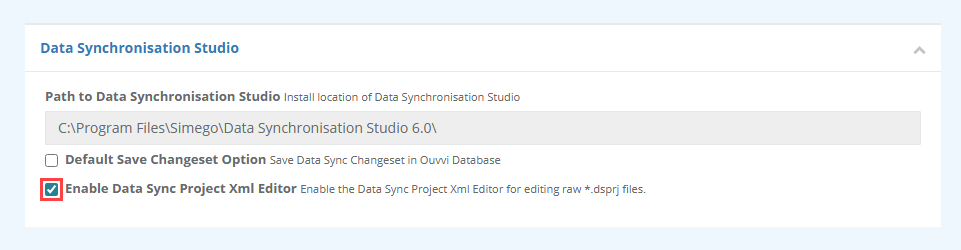
Once enabled, an Edit DataSync Project XML button will appear on the step overview page for any Data Sync Project step within your Ouvvi projects.
Opening the Editor
Navigate to your Ouvvi project and open the Data Sync step you want to edit. Click the Edit DataSync Project XML button in the top right of the step overview page.
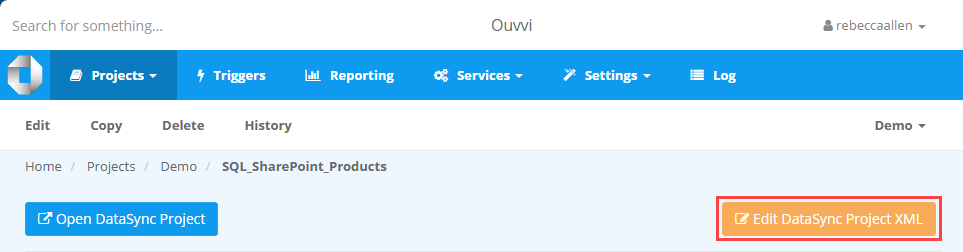
This will open the XML editor page for that project.
Editing the Project
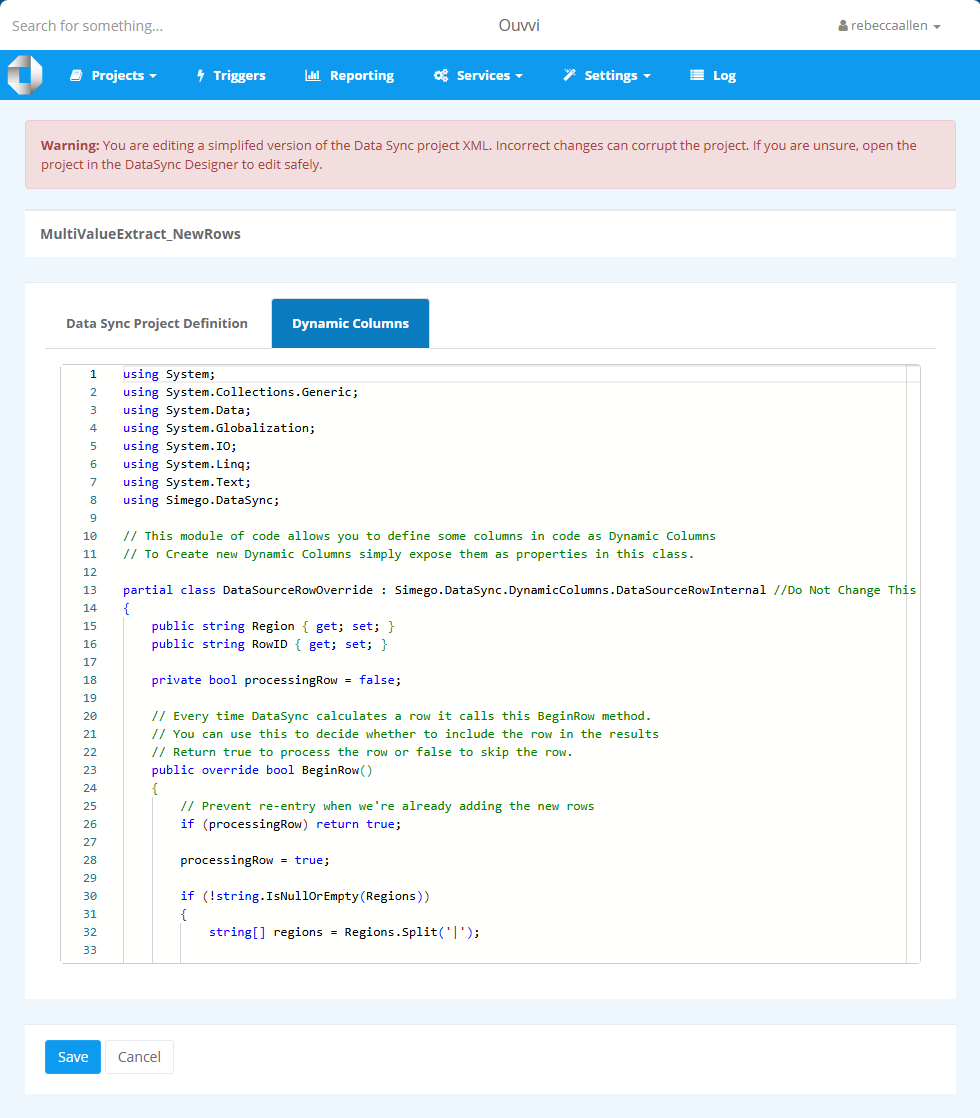
The editor presents the project content across tabs. Only tabs relevant to the project are shown — if a project has no Dynamic Columns or Project Automation configured, only the Data Sync Project Definition tab will be visible.
- Data Sync Project Definition : The core project XML defining the data sources, connection parameters, and sync configuration.
- Dynamic Columns : The C# code for any Dynamic Columns defined in the project.
- Project Automation : The C# code for any Project Automation defined in the project.
Once you have made your changes click Save to apply them, or Cancel to discard any changes and return to the project.
A Note on the Project Definition
The Data Sync Project Definition tab shows a simplified version of the project XML with some settings removed to reduce the risk of accidental changes. However, care should still be taken when editing here — it is easy to inadvertently change a setting you did not intend to, such as a connection parameter, batch size, or timeout value, which could affect how the project runs.
Always review your changes carefully before saving. If you are making significant changes, consider opening the project in the Data Sync Designer instead, where you have the full designer available to make changes safely.
Reverting Changes with History
Ouvvi keeps a version history of the project steps. If you make a mistake or want to undo a change made in the XML editor, you can revert to a previous version using the History button at the top of the step overview page.
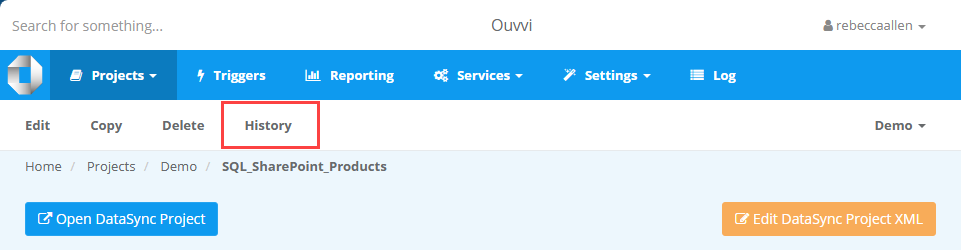
It is good practice to check that your project runs correctly after making any changes in the XML editor, so that you can identify and revert any issues quickly.
When to Use the XML Editor
The XML editor is best suited to making quick, targeted changes to a project without needing to open the full Data Sync Designer — for example adjusting a connection parameter, modifying a CommandWhere clause, or updating a timeout value.
For more complex changes such as adding or removing data sources, reconfiguring schema maps, or making significant changes to Dynamic Columns or Project Automation, it is recommended to open the project in the Data Sync Designer where you have the full visual tooling available.