Data Sync Project File
Starts a Data Sync project directly from a project file on disk, rather than from a project stored inside Ouvvi. This is useful when you want to manage your Data Sync project files externally — for example, using Git for version control — without storing the project definitions inside Ouvvi itself.
Configuration
To configure this step you need to point it to the path to the Data Sync project (.dsprj) file you want to target. We recommend using user settings to set the path so you can change it from a single location without editing multiple steps. Make sure the path points to a networked or shared folder so that the Ouvvi service agent can access it.
You can also define if you want to record the changeset data, either use the default setting, Yes or No.
Within the configuration you can also pass project properties. These can be static values or use user settings to be evaluated at runtime - for example {{StepName}} is a built-in expansion value that resolves to the name of the current step at runtime.
Make sure the properties you are passing are defined in your Data Sync project under File > Properties > Properties, and that your Project Automation code is configured to read them.
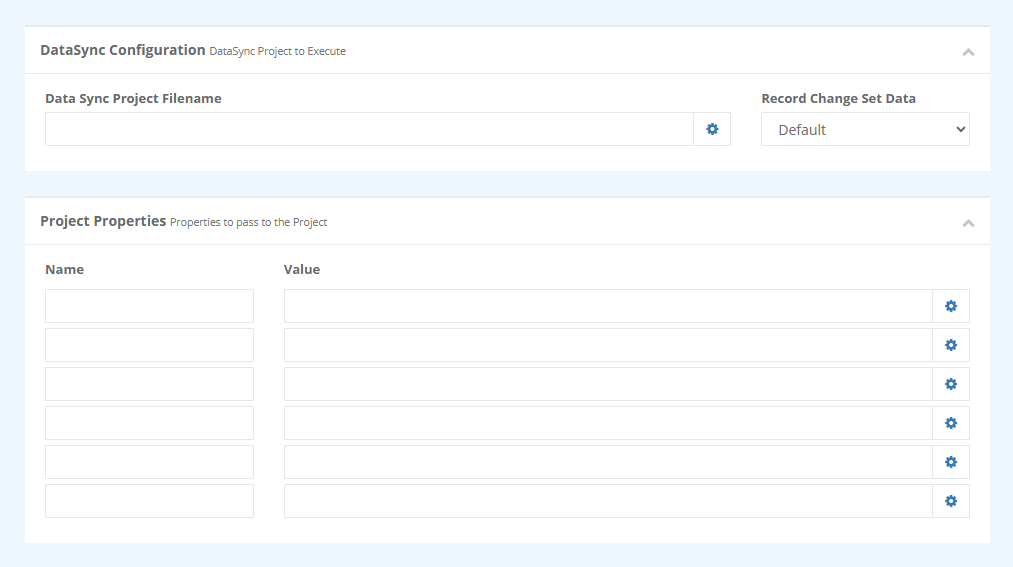
Dynamic Project Example
An example use case for this step type is running the same Data Sync project file against multiple entities — for example, exporting a series of Dynamics 365 entities to SQL. Rather than creating a separate Data Sync project for each entity, you can create one Data Sync project file that handles the sync dynamically, and use the step name to drive which entity is processed at runtime.
You can find details on the full scenario and configuration of the dynamic Data Sync project on our blog here.
Once you have your project created go to Ouvvi and create a User Setting (e.g. DynamicProject) containing the path to your .dsprj file.
In the Data Sync Project File step set the Data Sync Project Filename field to the name of your user setting surrounded by double curly brackets {{DynamicProject}}. This will populate the field with the path you defined in user settings at runtime.
Then in the Project Properties section, add a row with the name entity and set the value to {{StepName}}. {{StepName}} is a built-in default user setting in Ouvvi that is replaced with the name of the step at runtime, so each step automatically passes its own name as the entity to the Data Sync project.
This should look something like the image below:
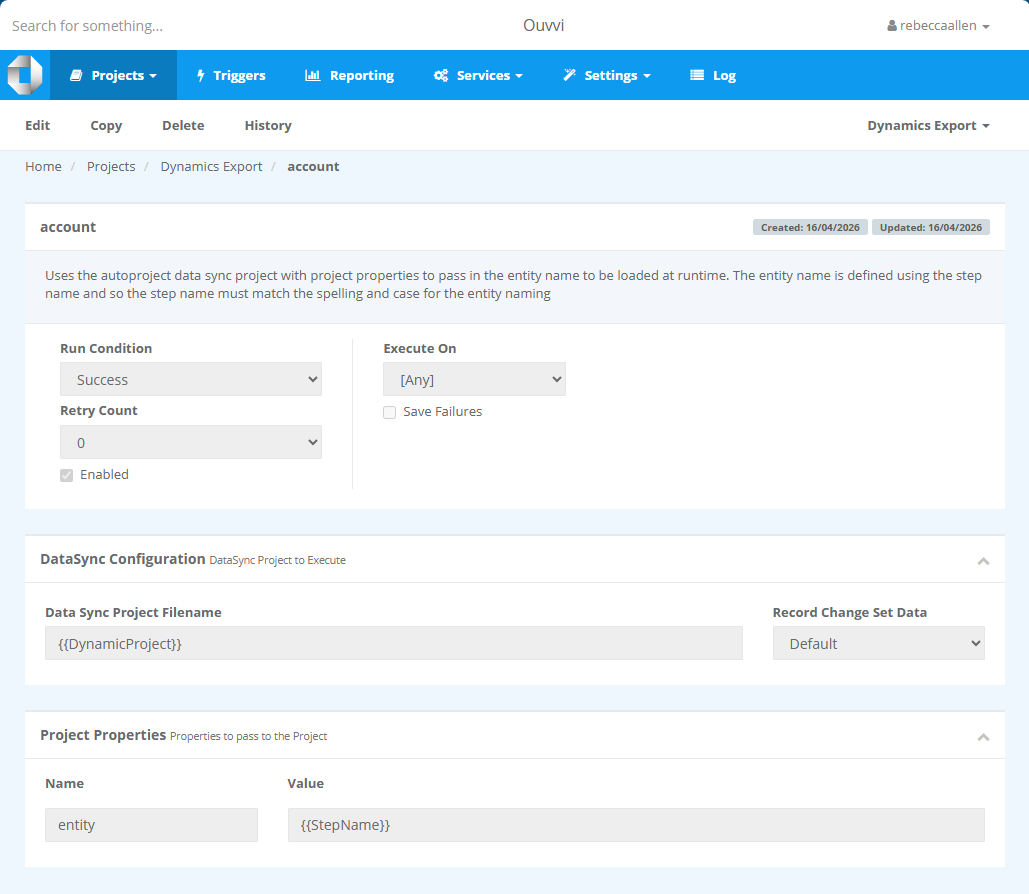
You can now copy the step and change the name of each to match the Dynamics entity it should target (e.g. account, contact). To add a new entity to the export, use Copy Step on an existing step and rename the copy to the new entity name — no other changes are needed. Each step points to the same .dsprj project file and the project handles the rest dynamically at runtime.
File Management and Backup Considerations
Because this step type runs project files from disk rather than from the Ouvvi database, your project files exist outside of Ouvvi's backup and export mechanisms. You should make sure these files are included in your own backup strategy.
Using Git or another version control system to manage the project files is a good approach and is one of the main reasons you might choose this step type. However, it does mean the project file history is slightly disconnected from Ouvvi — the step version history within Ouvvi will not reflect changes made to the underlying file on disk.
:::info Multi-Server and/or Active-Active Deployments In an active-active Ouvvi setup or any environment where steps may be processed by different agents, each agent must be able to access the project file at the configured path. If you are using a local file path, only the agent on that machine will be able to run the step successfully.
To ensure reliable execution across all agents, store your project files on a shared network location (such as a UNC file share) that all agents can access. Be aware that this step type can require additional care to configure correctly in distributed environments. :::