PowerShell 2
Available from version 6.0.3604.
The PowerShell 2 step runs a PowerShell script as part of your Ouvvi automation pipeline. It is the recommended way to run PowerShell scripts in Ouvvi, replacing the original PowerShell step.
The original PowerShell step step runs within the Ouvvi service process, which can cause issues if a script waits for user input — this will cause the step to hang indefinitely. The PowerShell 2 step resolves this by running as a separate process, in the same way as the External Program step, and passing -NonInteractive by default to PowerShell to try to mitigate some user input issues. Running as a separate process delivers better overall performance, particularly for long-running scripts.
It also supports combining multiple script files into a single execution by separating file paths with a semicolon (;). This allows you to break your scripts into modular files and combine them at runtime without needing a wrapper script.
Configuration
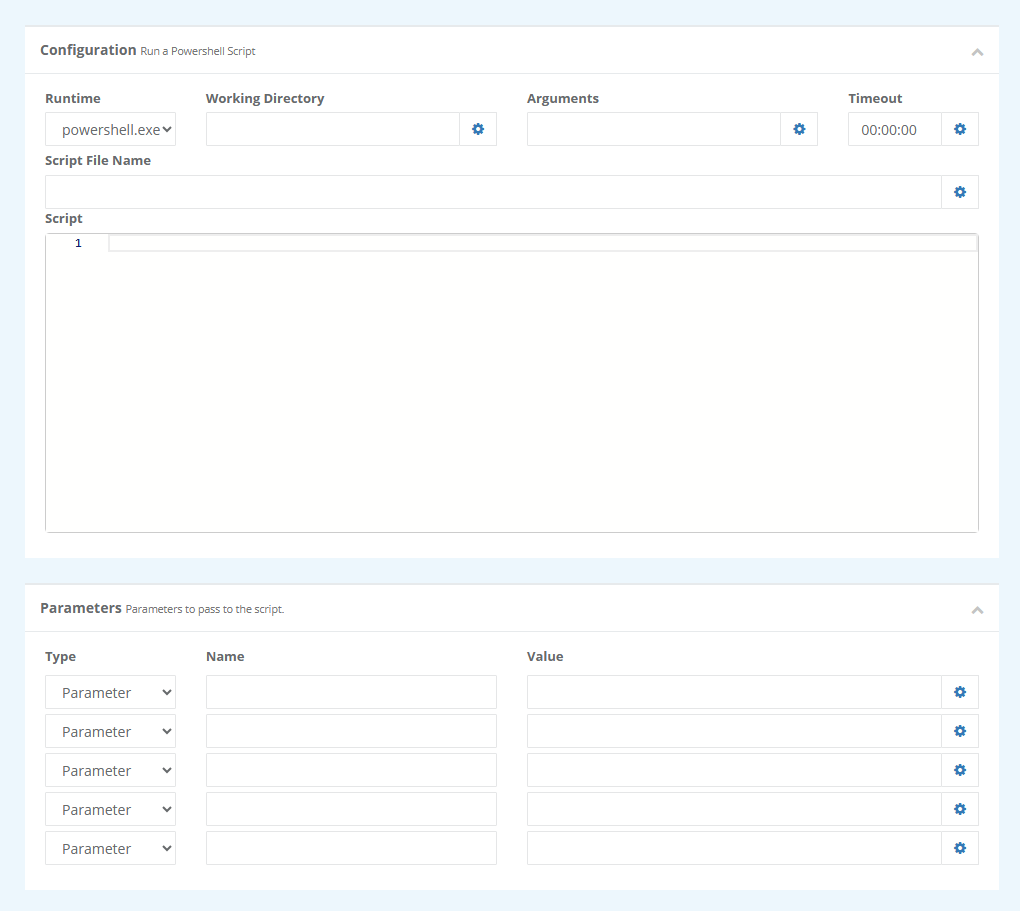
| Property | Description |
|---|---|
| Runtime | The PowerShell executable to use. Select the runtime from the dropdown menu, the default is powershell.exe. If you are using PowerShell 7+ you can change this to pwsh.exe. |
| Working Directory | The directory the script will run from. File paths within your script will be resolved relative to this location. Leaving blank will default to the local Temp path. |
| Arguments | Any additional arguments to pass to the PowerShell runtime. |
| Timeout | The maximum time the step is allowed to run before Ouvvi cancels it. Make sure to set a reasonable value for your step, as leaving it set to 00:00:00 will result in no timeout. |
| Script File Name | The path to one or more .ps1 script files to execute. To combine multiple script files into a single execution, separate each file with a semicolon (;). |
| Script | A PowerShell script written and executed directly within Ouvvi, without needing an external file. Note if a script is entered here, the Script File Name field will be ignored. |
Parameters
Parameters allow you to pass values into your script at runtime. Each parameter has three fields:
| Field | Description |
|---|---|
| Type | How the value is passed to the script. See the parameter types below. |
| Name | The parameter name, e.g. -ExecutionPolicy. |
| Value | The value to pass. You can use Ouvvi expansion syntax here, e.g. "{{AppTitle}}" to pass a dynamic value from your project configuration. |
Parameter Types
| Type | Description |
|---|---|
| Parameter | Passes the value as a named command-line argument to the PowerShell runtime, e.g. -ExecutionPolicy RemoteSigned. |
| ScriptParameter | Passes the value as a named parameter to the script itself, e.g. -Name Simego. |
| EnvironmentVariable | Sets the value as an environment variable available to the script process. |
Examples
Hello World
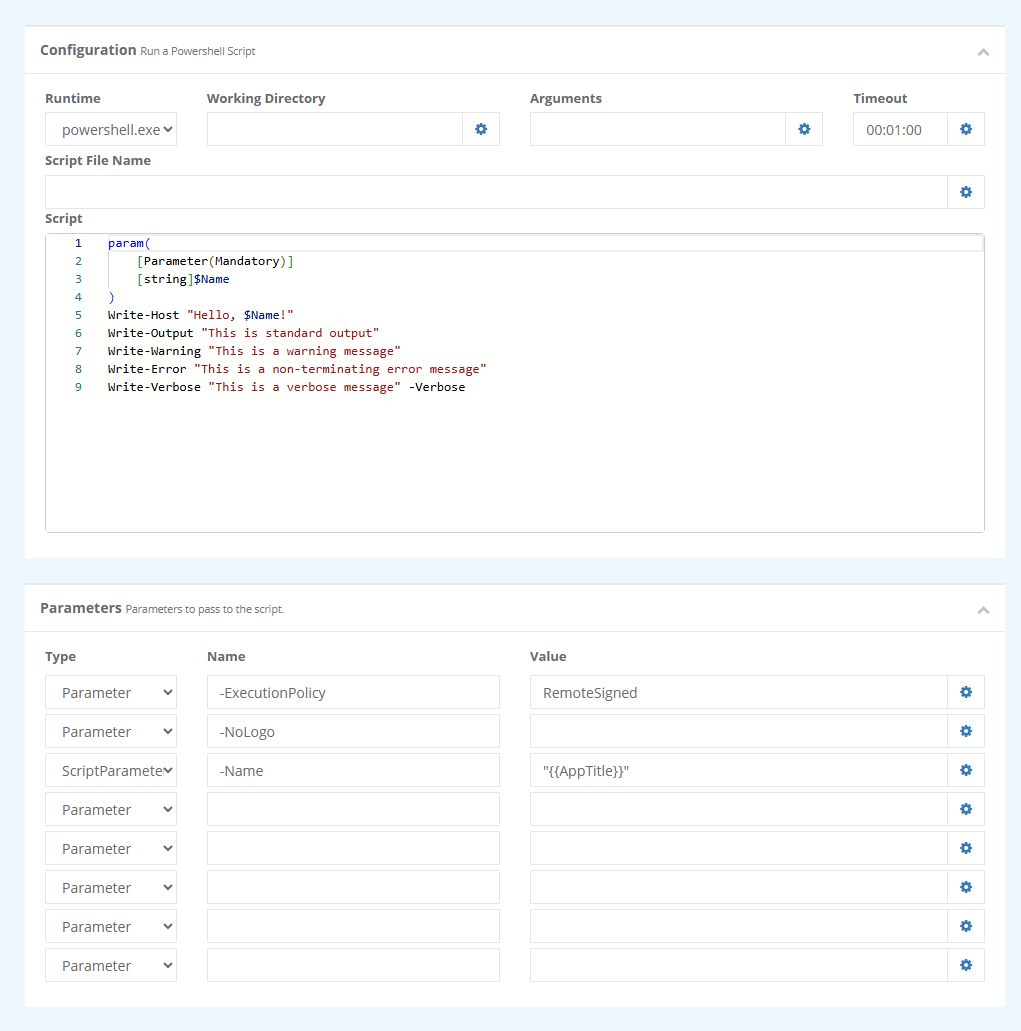
A simple script to verify the step is working and demonstrate the different output streams available in PowerShell.
Recommended Parameters:
| Type | Name | Value |
|---|---|---|
| Parameter | -ExecutionPolicy | RemoteSigned |
| Parameter | -NoLogo | |
| ScriptParameter | -Name | "{{AppTitle}}" |
The Name set here passes in an expansion value from Ouvvi called AppTitle which is the name of the Ouvvi instance. You can read more on expansion values in the User Settings documentation.
The script for this example can be something like this:
param(
    [parameter(mandatory)]
    [string]$Name
)

Write-Host "Hello, $Name!"
Write-Output "This is standard output"
Write-Warning "This is a warning message"
Write-Error "This is a non-terminating error message"
Write-Verbose "This is a verbose message" -Verbose
Running Multiple Script Files
This example demonstrates combining multiple script files into a single execution using the Script File Name field.
Create two script files and save them to your working directory:
script1.ps1
Write-Host "Script 1 - Start"
Write-Output "Script 1 - Done"
script2.ps1
Write-Host "Script 2 - Start"
Write-Output "Script 2 - Done"
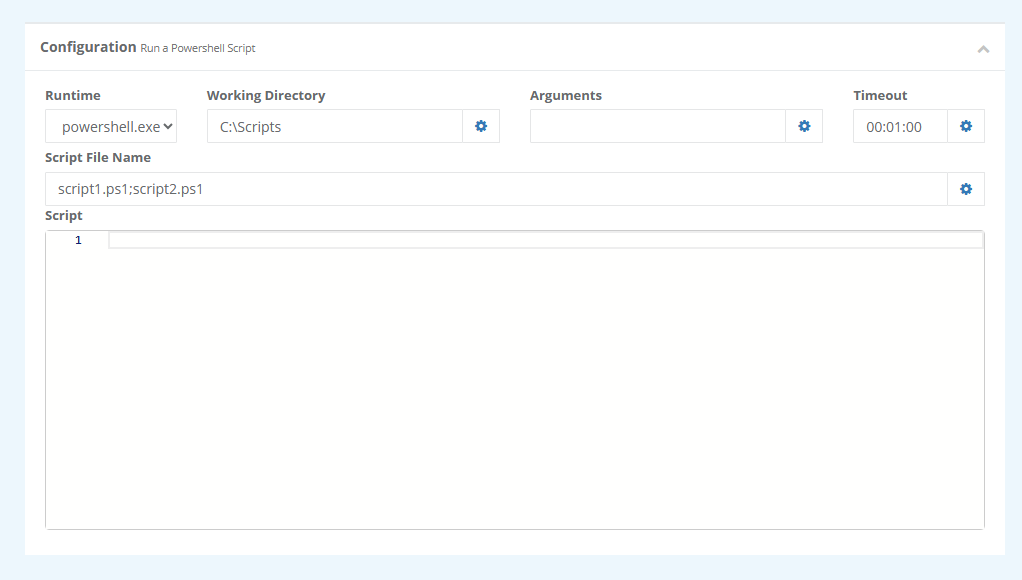
Enter the Working Directory path, and if the script files are found within the same path you can simple set the Script File Name field to script1.ps1;script2.ps1.
If the scripts are in a different location to the working directory, make sure to include the path to both files separated by a semicolon: C:\Scripts\script1.ps1;C:\Scripts\script2.ps1
Ouvvi will compile both files and execute them together as a single script. The log output will show each script completing in order:
Script 1 - Start
Script 1 - Done
Script 2 - Start
Script 2 - Done
Make sure to set the timeout value to something appropriate for your scripts - too short and it will timeout before completing. Leaving it set to 00:00:00 will result in no timeout and could make it a never ending process if there is an issue.
Passing an Environment Variable
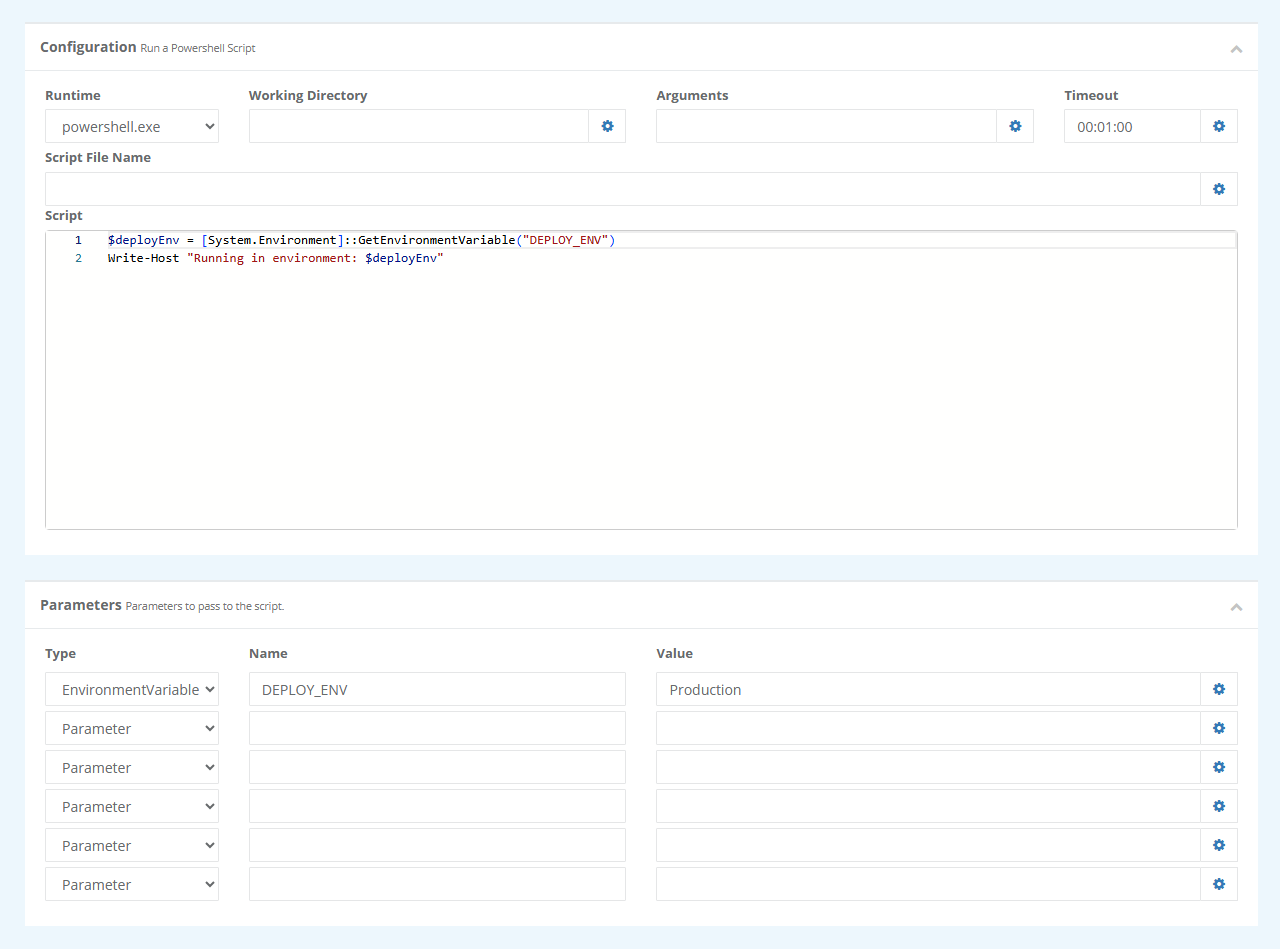
This example shows how to pass a value into your script as an environment variable, which is useful when calling scripts that read from the environment rather than accepting arguments directly.
Parameters:
| Type | Name | Value |
|---|---|---|
EnvironmentVariable | DEPLOY_ENV | Production |
Script:
$deployEnv = [System.Environment]::GetEnvironmentVariable("DEPLOY_ENV")
Write-Host "Running in environment: $deployEnv"
With the environment variable set to production, this script will write to the log output: Running in environment: Production.
Troubleshooting
Step Hanging or Not Completing
This is usually caused by one of the following:
- Scripts are disabled on the machine. Check the execution policy by running the following in an elevated PowerShell prompt on the Ouvvi server:
Get-ExecutionPolicy -List
If all scopes show Undefined or Restricted, set the machine-wide policy to allow local scripts to run:
Set-ExecutionPolicy -ExecutionPolicy RemoteSigned -Scope LocalMachine
If MachinePolicy or UserPolicy shows Restricted, it is being enforced by Group Policy and you will need to speak to your domain administrator.
- The script contains interactive prompts. Commands such as
Read-Host,pause, or cmdlets that ask for confirmation can cause the step to hang. Review your script for anything that might be waiting for a response.
Access Denied
These errors can occur when the Ouvvi service account does not have permission to write to the Working Directory. The PowerShell 2 step writes a temporary file to the Working Directory before executing, so this folder must be writeable by the service account.
Set the Working Directory to a folder the service account can write to, such as C:\Scripts or C:\Temp, and ensure the service account has Modify permission on that folder. Alternatively leaving the Working Directory blank will use the local Temp folder.
As another option you can give the agent permission to access that folder by altering the folder properties, giving the service agent Modify permission.
You should avoid using a user profile folders such as C:\Users\username\Downloads as the Working Directory, as Ouvvi runs as an unattended process and service accounts will not have access to user profile locations.
System Cannot Find the File Specified (pwsh.exe)
This error occurs when the Runtime is set to pwsh.exe but PowerShell 7 is either not installed or is not on the PATH for the service account.
If PowerShell 7 is not installed, either install it from microsoft.com or switch the Runtime back to powershell.exe to use Windows PowerShell instead.