Data Compare
The Data Compare function of Data Sync allows you to preview the differences between your source and target data sets.
It can be found in the shortcut toolbar of Data Sync.

To use this feature you need to have added the columns you want to synchronise to your schema map and have selected a key column that is unique and can be used to identify each record.
Then click the Compare button (or F5), the source and target data will be loaded and data sync runs a comparison to work out Add, Update and Delete actions to make the target the same as the source.
By default Delete is always disabled, you can enable and disable these action using the Connection Properties EnableAdd, EnableUpdate, EnableDelete.
If an action is disabled the compare results will still show it in the results, however where an action is disabled the sync check box will be cleared.
This is a double opt-in check, for example if EnableDelete is set to False and you check a row in the results for delete, the row will not be deleted unless EnableDelete is set True.

Compare Results
The Compare Results window shows a summary of the results, from here you can view the proposed changes, choose what to sync and export the results.
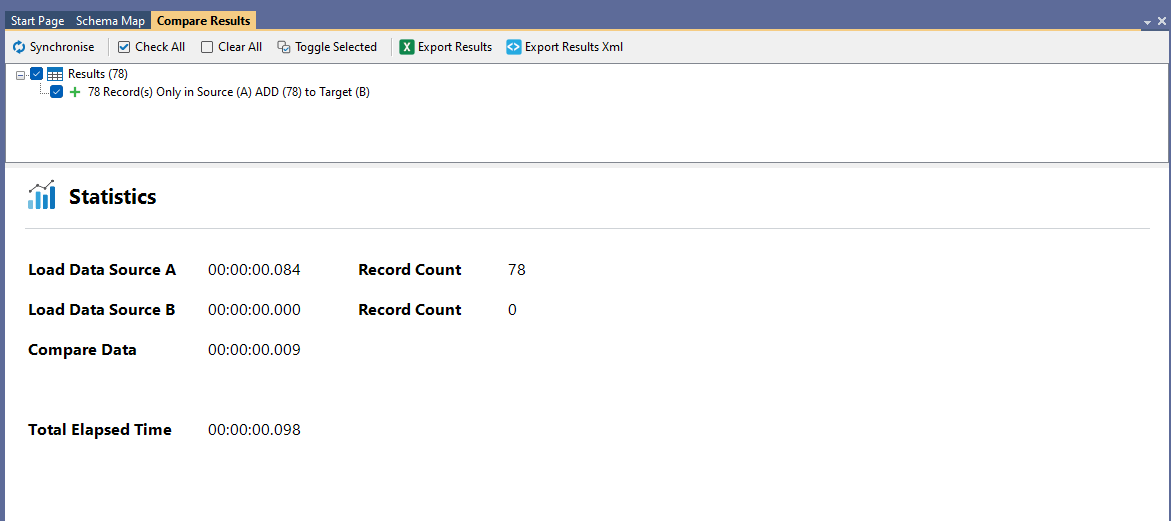
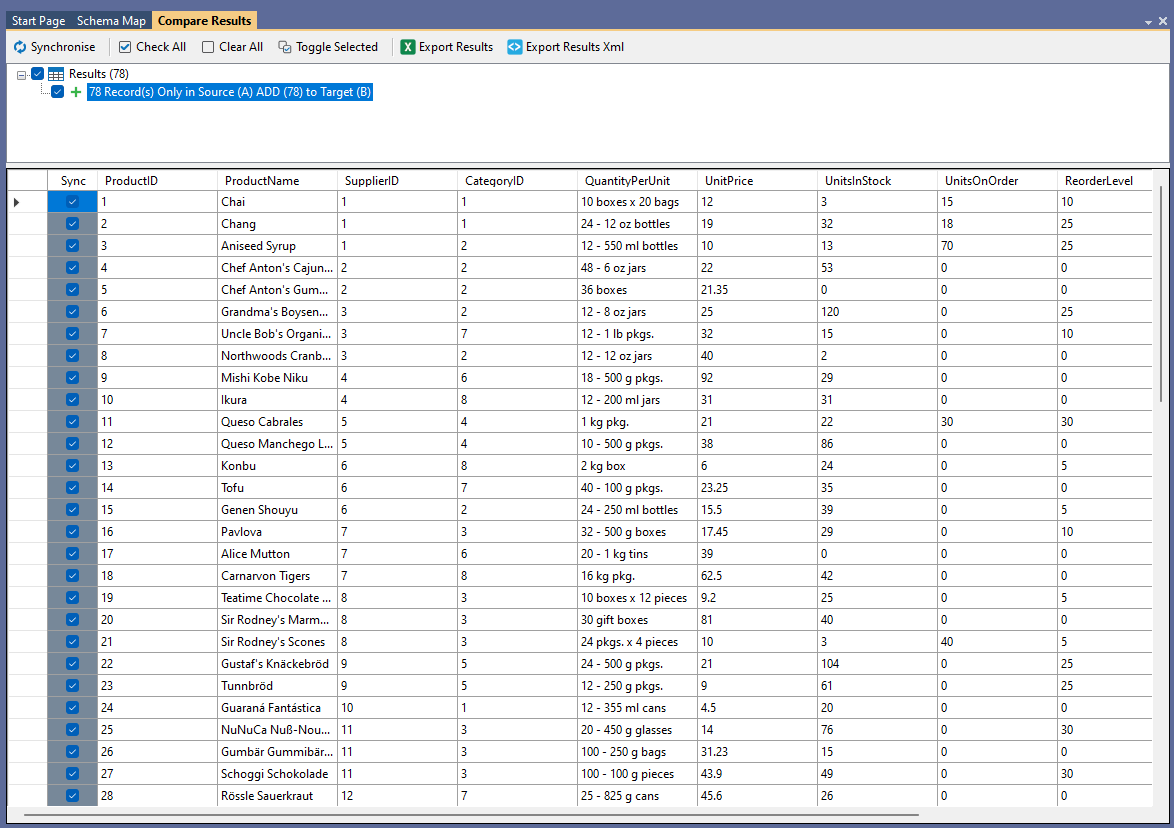
Selecting one of the change sets (Add/Update/Delete) from the results allows you to view the actual data in this change set.
By default all the changes are included, however you can uncheck the sync check box against any changes you do not want to make. You can do this one row at a time or from the mini-toolbar to check all, clear all or toggle the selected rows.
Update Results
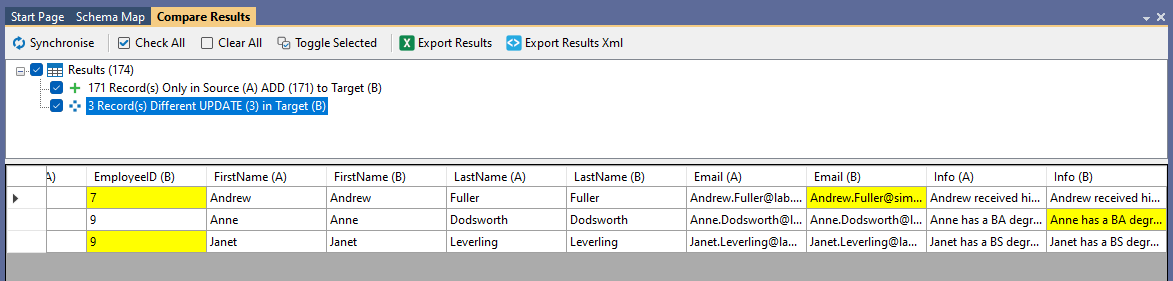
Where you have UPDATE actions, Data Sync will highlight the target columns with a yellow background to show that these are to be updated. Since Data Sync compares the Data column by column only the changed/highlighted data is sent to the target.
Synchronise Changes
To apply the changes in the compare results tab, press the Synchronise button in the compare toolbar.

This will then display the Synchronise window, and clicking Start will begin the Synchronisation process.

Export Results
You can export the compare results to either a Excel Spreadsheet or an Xml .NET DataSet format file via the Export buttons in the toolbar.

Simply select the button and define the file name and location it should be created, Data Sync will then create the export file for you in the chosen format.